
Seedream Negative Prompt: Check Image Edits Before You Generate
A Seedream negative prompt image-edit check: define one allowed change, protected details, layout limits, input rights, and a reject decision.
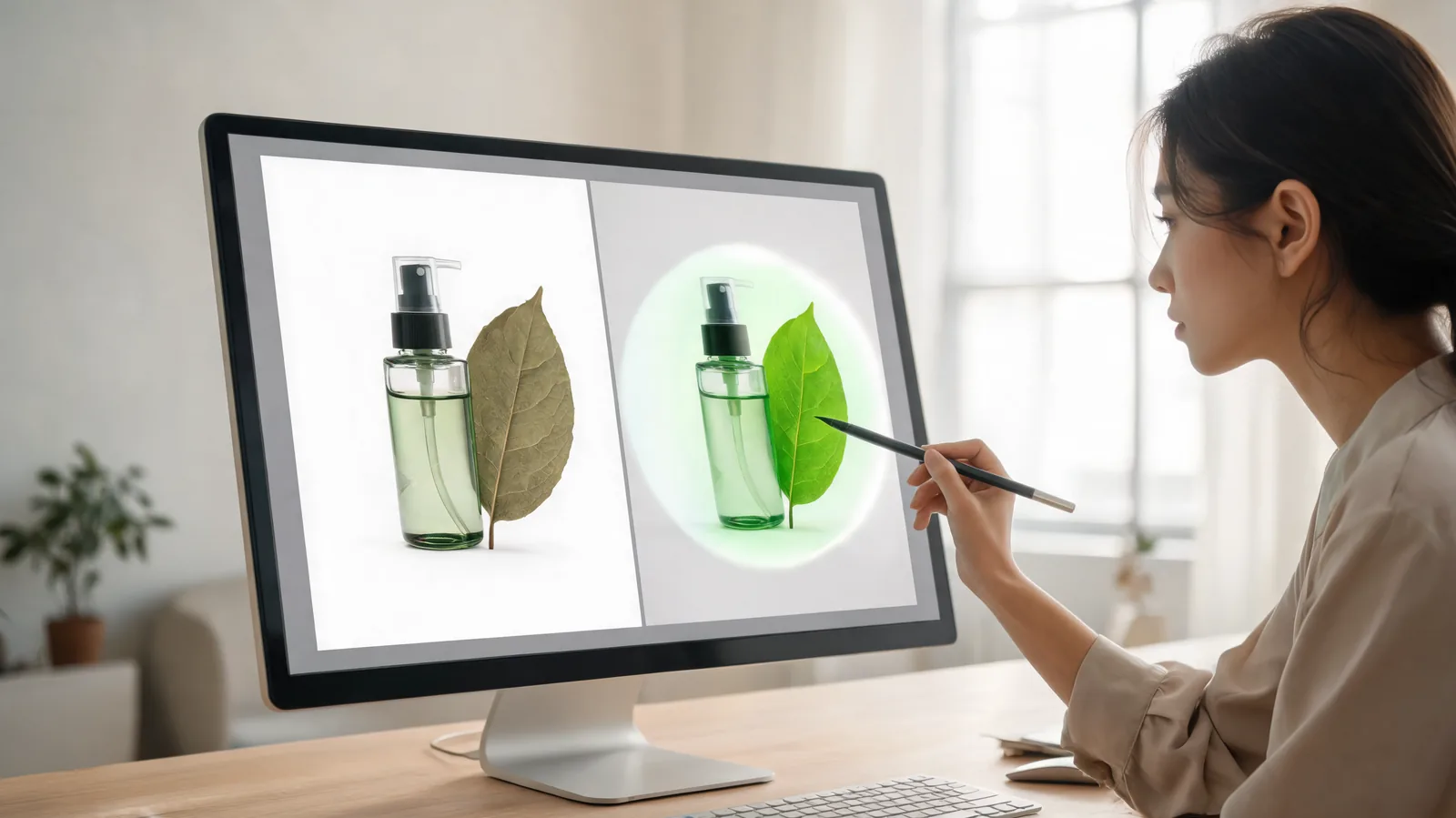
For a Seedream negative prompt, begin by checking the image edit—not by assuming a hidden “negative” field will preserve everything. Define one allowed change, list the two or three details that must stay intact, and reject any result that drifts in layout, identity, object shape, background, or meaning. This is a pre-submit image-edit check, not the video negative-prompt workflow covered in the older Seedance negative prompt guide.
Published September 27, 2026 · Image-edit quality-control guide
People searching this phrase often want fewer unwanted changes. In a still-image edit, that is a review problem as much as a wording problem. An exclusion such as “do not change the face” is not a guarantee; it is only useful when the result has a clear source, a narrow intended change, and a reviewer who knows what to compare.
The pre-submit decision in one minute
Write a compact edit brief before you upload anything:
| Brief field | Good first answer | Stop and revise when |
|---|---|---|
| Source | One image you own or are permitted to edit | You cannot explain ownership, consent, or intended use |
| Allowed change | Replace a plain background with a muted blue studio backdrop | The request combines wardrobe, face, scene, lighting, and product changes |
| Protected details | Composition, bottle silhouette, and side-light direction | The protected list is “everything” |
| Exclusions | No new people, no readable text, no logo, no extra objects | Exclusions describe the whole brief instead of the key risk |
| Review decision | Reject if the bottle shape, crop, or light direction changes | “Looks better” is the only acceptance rule |
The current Seedance configuration registers Seedream 5.0 Lite and Seedream 5.0 Pro for image-to-image work. The live selector is still the authority for options available to your account, so this guide does not assume a dedicated negative-prompt control. It gives you a way to make any visible edit request reviewable.
1. Decide whether you need an edit or a new image
Image-to-image is useful when an approved source carries something you genuinely need to retain: a composition, an object relationship, a framing decision, or a palette. If the source is merely a loose inspiration, a new image concept may be less confusing than asking an edit to preserve a frame you do not actually want.
Ask one question: what evidence in this source must survive? If the answer is “the person’s exact identity,” “the package label,” or “a legal statement,” be cautious. A generated result is not a reliable proof of identity, exact copy, product specification, or real event. Use conventional editing and independently checked production assets for those requirements.
The Seedream 5.0 Pro first-edit guide explains the mode choice in more detail. This page starts one step earlier: whether the proposed edit has a small enough scope to submit.
2. Choose one allowed change
The phrase “negative prompt” can hide the positive decision that matters: what should change? State that decision in one ordinary sentence before you add exclusions.
| Weak request | Bounded first request |
|---|---|
| “Make this look premium; do not alter anything.” | “Keep the composition and unbranded bottle shape; change only the pale background to a deep blue studio backdrop.” |
| “Fix the portrait but do not change the person.” | “Keep the approved person and crop; reduce the background clutter only.” |
| “Improve this product ad; no mistakes.” | “Keep the object position and soft side light; replace only the blank table surface.” |
A bounded request leaves you with something a reviewer can verify. It also prevents a frustrating loop where each new attempt silently asks for a different image. If you need several changes, sequence them as separate proposals and approve the result of each one before using it as a later source.
3. Turn exclusions into a short risk list
Exclusions should protect the edit’s real risk, not become a long catalog of every possible failure. For the bottle example, “no readable text, logos, extra objects, or people” is enough. For a permitted portrait, protect identity, clothing outline, and the original crop. For an interior, protect straight lines, the key object, and the horizon.
Avoid copying model-specific syntax from a different image service. If a dedicated field is visible in your current workflow, use only the format the interface presents. If it is not visible, plain-language constraints in the main edit brief are safer than pretending a hidden control exists.
The review note should make it obvious which change was allowed and which drift is unacceptable.
4. Review the result at full-frame and useful crop sizes
Do not accept an edit because the changed area looks good in a thumbnail. Compare the source and result side by side, first at full frame and then at the crop where the image will actually be used. Use this review order:
- Composition: Did the crop, horizon, balance, or object placement move?
- Protected subject: Did the face, product silhouette, garment, or key object stay credible?
- Allowed change: Did the requested background, color, or lighting adjustment happen—and only that?
- Unexpected additions: Did new people, hands, marks, objects, or text appear?
- Meaning and claims: Does the edited frame imply a performance, endorsement, location, or factual event that you cannot support?
Reject a result that fails a protected detail even if the requested change looks attractive. A visually pleasing edit is not usable when it has changed the thing the image was meant to preserve. The Seedance image-to-image Lite versus Pro guide can help with the separate decision of which currently visible model option to try for a controlled first edit.
5. Keep the source rights and disclosure decision outside the prompt
A prompt cannot create permission. Before uploading, confirm that you may use the source image for this test and intended distribution, especially if it contains a recognizable person, client work, a trademark, or confidential detail. Keep the original source and a short record of why you may use it.
For public policy background, the U.S. Copyright Office’s AI initiative collects current materials on AI and copyright. It does not determine rights in your specific source, and this guide is not legal advice. When the stakes are high or the source terms are unclear, pause and ask the rights holder or qualified counsel.
If the result will later become a video source, approve the still first. A competent still does not guarantee that identity, geometry, or text will remain stable through motion. The image-to-video variation review covers the later, separate decision of selecting a usable animated result.
A practical reject-and-revise loop
When you reject an edit, write what changed rather than calling it “bad.” For example: “Background changed as requested; bottle cap became wider; reject. Next test keeps the same background request and adds ‘preserve cap proportion.’”
This record does three useful things: it keeps the next request small, stops a team from mistaking an unapproved output for a source, and makes the eventual selected image easier to explain. Do not keep prompting a flawed image until it happens to look plausible at a glance; return to the approved source when protected details have already drifted.
Frequently asked questions
Does a Seedream negative prompt guarantee that an image edit preserves everything else?
No. Treat the output as a generated revision. Define one requested change and a short protected-detail list, then inspect the result for layout, identity, object, background, and text drift.
What is a safe first Seedream image edit?
Use a permitted source and request one visible change, such as a background or lighting adjustment, while protecting two or three details. Do not rely on the result for exact text, legal copy, specifications, or real-world evidence.
When should I reject an AI image edit instead of prompting again?
Reject it when the edit changes the protected subject, composition, identity, product geometry, or meaning; adds unapproved elements; or makes the intended use unclear. Record the observation and make only one smaller next change if you continue.
Submit an edit you can defend
An effective constraint is not a promise that nothing will drift. It is a decision a reviewer can test: one permitted source, one allowed change, a short protected list, and a clear reason to accept or reject the result. Once that is ready, open the Seedance studio and keep the original beside the first output.