
Seedream 5.0 Pro Image-to-Image: A Controlled First Edit
Edit a permitted source with Seedream 5.0 Pro in Seedance: protect key details, request one change, and review the result.
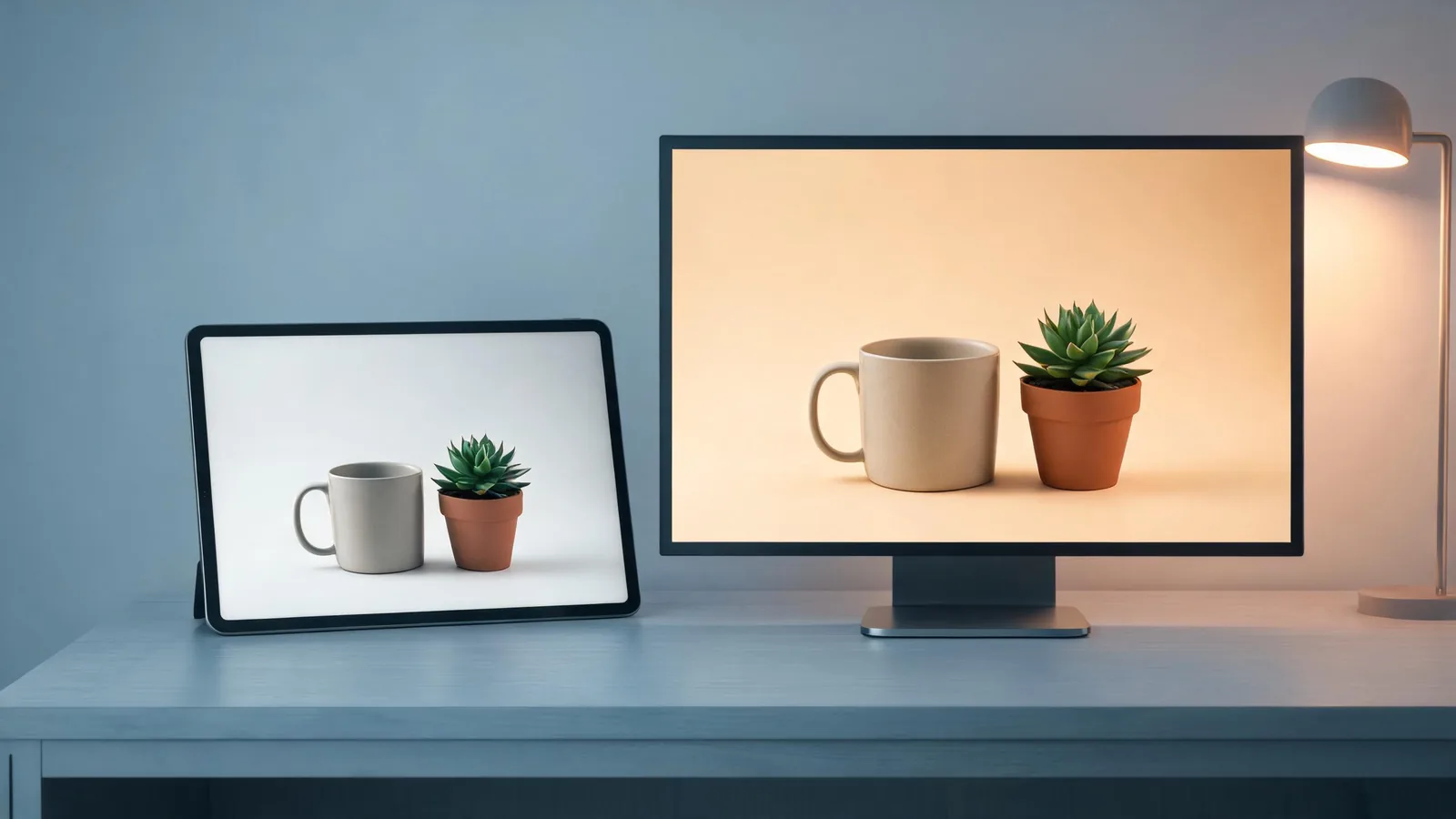
Seedream 5.0 Pro image-to-image is the right starting point when you have a permitted source image and one clear revision to test. In the Seedance generator, protect the composition and the few details that matter, ask for one bounded change, then judge the complete result before treating it as a video input or creative asset. It is a controlled experiment, not a promise of pixel-perfect retouching.
Updated September 9, 2026 · about 8 min read
The live Seedance generator currently registers Seedream 5.0 Pro for text-to-image and image-to-image. The studio lists common aspect ratios, basic and high quality choices, and up to ten source images for the Pro model. That makes a careful edit workflow possible, but the live selector is still the authority for the options available to your account at the moment you work.
This guide is deliberately narrow. It does not try to turn a generated image into approved packaging, legal copy, or proof of a real-world claim. It shows how to make one reviewable first edit.
Decide whether image-to-image is actually the task
Start from the question you need to answer. If the brief is wide open, text-to-image is usually less confusing. If an approved source already carries a composition, object relationship, or palette you want to retain, image-to-image gives the reviewer a useful before-and-after comparison.
| Your real question | Better starting mode | First review decision |
|---|---|---|
| “What visual direction should this idea take?” | Text-to-image | Is the subject, framing, and mood worth developing? |
| “Can this approved still take one new direction?” | Image-to-image | Did the requested change happen without losing protected details? |
| “Can this still be animated?” | Approve the still first | Is the still a safe, usable source for a later motion test? |
Do not upload an image simply because it is handy. A source with unclear ownership, a recognizable person without permission, confidential client material, a protected character, or an exact brand package changes the risk of the test. For a practical input screen, use the image upload privacy checklist before the generation step.
Set a small, visible success condition
The most reliable first edit has a short answer to two questions: what must stay, and what may change? Write those down before opening the generator. Three protected details are enough for a first pass.
For example, a product concept team might write:
- Keep: the unbranded bottle silhouette, three-quarter composition, and side-light direction.
- Change: only the pale stone background to a deep blue studio setting.
- Do not add: readable copy, a logo, people, or a new product claim.
This is more useful than “make it premium, cinematic, clean, colorful, editorial, and realistic.” A stack of broad adjectives leaves no clear review standard. A bounded instruction lets the team reject a render for a specific reason: the object changed, the composition drifted, or the background did not become the requested setting.
Choose a source that can survive comparison
Use the clearest version of the image you have permission to edit. Review it at the final crop or close to it. If the core subject is tiny, underexposed, heavily compressed, or surrounded by details you do not want, the edit is harder to assess.
Before upload, check:
- Permission: you own the image or have authorization for this intended test.
- Purpose: you can name the one decision the edit should support.
- Protected details: you can point to the shape, layout, or visual relationship that must remain recognizable.
- Sensitive material: the source does not expose private information, confidential work, or a person whose use has not been approved.
- Exact elements: any price, label, legal line, medical statement, or logo is treated as an edit-risk—not something the render must reproduce exactly.
Seedream 5.0 Pro is registered for multiple source images, but more references are not automatically better. For a first controlled test, use one source unless a second image has a single clear role, such as a permitted material reference. Adding several unrelated images can make it unclear which input caused a change.
Write a bounded edit request
Put preservation first, then the one requested change, then the exclusions. This structure makes the instruction readable for a reviewer as well as for the generation system.
Preserve the existing three-quarter composition, the plain bottle silhouette, and the soft side light. Change only the background from pale stone to a deep blue studio backdrop. Keep the label area blank. Do not add readable text, logos, people, or extra products.
The request does not claim that every protected detail will survive. It simply makes the intended comparison explicit. If you need a different crop, a new material, new lighting, a new setting, and extra objects at once, split those into separate tests. Otherwise a good-looking result may hide which change caused a critical drift.
The live Seedance selector is the evidence for what the studio offers. For vendor-level API context, BytePlus’s image-generation documentation distinguishes its Pro image-editing workflow. That source does not guarantee the same controls or output in every service, so verify the visible Seedance settings before relying on them.
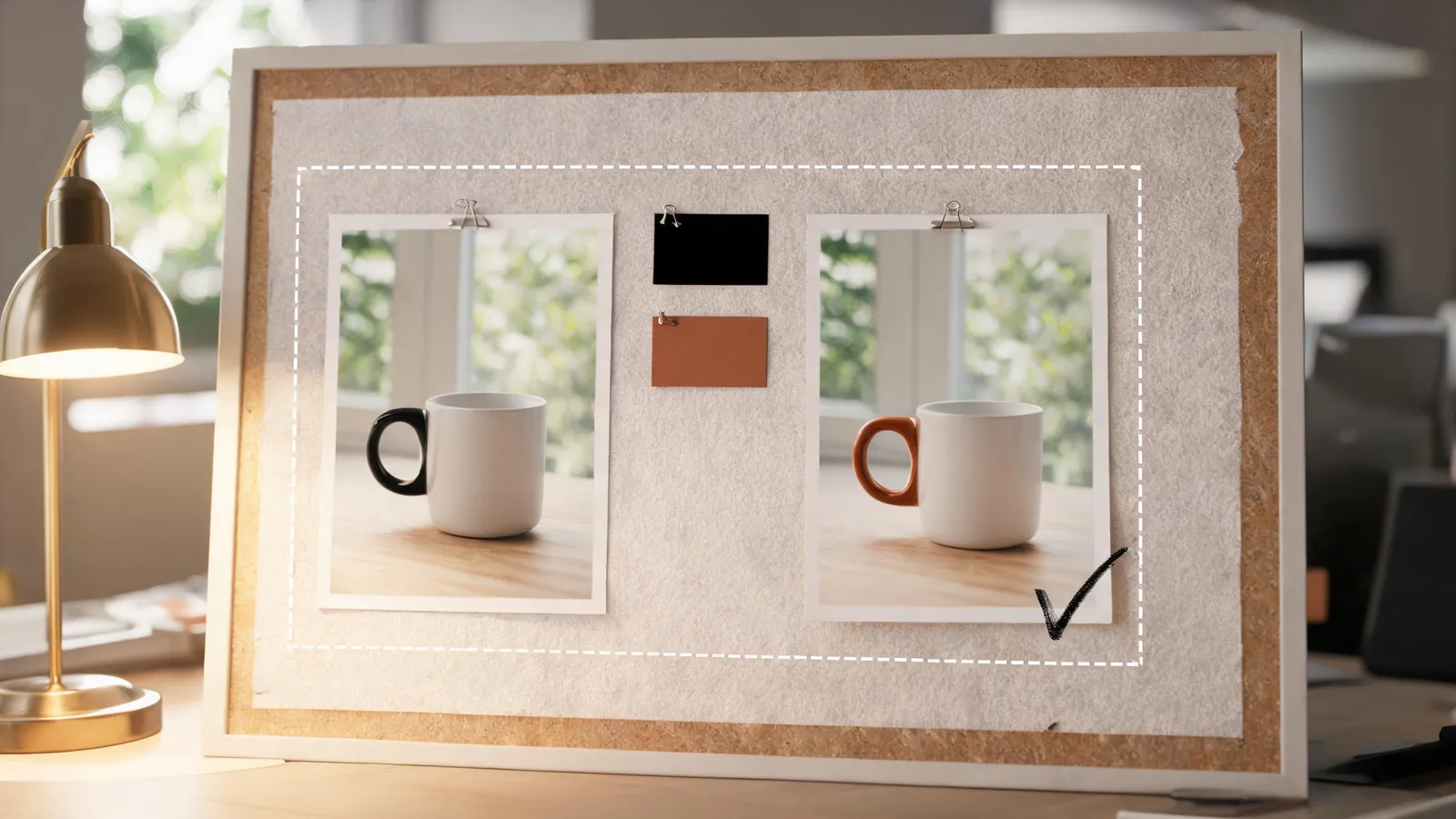
A useful first edit makes the intended change and the protected details easy to compare without pretending that the result is a final brand asset.
Review the complete image, not the first impression
Open the result at normal size and at the size where it will be used. A general impression of “better” is not an approval decision. Compare the render with the source against the criteria you wrote.
| Review area | Accept when | Return to the source or revise when |
|---|---|---|
| Composition | The intended framing and object relationship are still usable | The focal object moved, cropped badly, or lost its role |
| Protected detail | The agreed silhouette, palette relationship, or blank space remains recognizable | The object, person, or key negative space drifts |
| Requested change | The one named change is visible and fits the brief | Several unrelated changes appear or the named change is weak |
| Risky detail | No invented copy, logo-like mark, claim, or sensitive detail appears | The image could be mistaken for an approved factual or branded asset |
| Next use | The team can state the exact purpose of the revision | The render has no defined use beyond looking attractive |
Rejecting a handsome image can be the correct outcome. If it changes a key product shape, adds a near-logo, or creates unusable text, it has failed the stated decision even if the lighting is appealing. Keep the source and a short note such as “background direction approved; object silhouette not approved” so the next test does not silently expand the scope.
Hand an approved still to a video test carefully
An edited still can help an image-to-video test by giving the motion generator a clearer starting frame. It does not make the future video stable by itself. Before moving on, record the following:
| Handoff item | What to note |
|---|---|
| Source status | Where the input came from and what use is permitted |
| Approved qualities | The composition and details that should remain recognizable |
| Motion purpose | One action or camera decision to test |
| Prohibited implication | Any claim, identity, text, or product fact that must not be inferred from the render |
| Reviewer | Who can approve the still and who can approve the later clip |
For the motion step, read the Seedance image-to-video guide. If the still is for a product concept, use the later product video review checklist before calling a completed video ready for an editor or client.
Limits and disclosure
Seedance2-5.video is an independent creative studio, not ByteDance’s official Seedance site. This guide reflects the Seedream 5.0 Pro text-to-image and image-to-image options available in the studio on September 9, 2026. Controls, availability, and outputs can change.
Generated imagery can vary and should not be used as proof of a product’s performance, a real event, consent, ownership, or endorsement. Keep source permission and approval notes with the working files. For a final public, paid, or client-facing use, involve the person responsible for the factual, legal, and brand review.
Frequently asked questions
Can Seedream 5.0 Pro edit an existing image in Seedance?
The current Seedance generator registers Seedream 5.0 Pro for image-to-image. Start with an image you are allowed to use, identify what must remain stable, and request one bounded change.
What is a good first Seedream 5.0 Pro image-to-image request?
Use one source, one visible change, and two or three protected details. For example, preserve the composition and object silhouette, change only the background mood, and do not add text, logos, or people.
Does image-to-image preserve every detail exactly?
No. Treat the result as a generated revision that needs review. Do not rely on it for exact typography, legal copy, product specifications, identity, or evidence of a real event.
Can an edited still become an image-to-video source?
It can be a concept source for a later test after you review the input rights, protected details, and intended use. A good still does not guarantee that the same details will remain stable through motion.