
Seedance Image-to-Image: Seedream 5 Lite vs Pro First Edit
Choose Seedream 5 Lite or Pro for a first image-to-image edit in Seedance, compare source-image limits and quality choices, then review one bounded change.
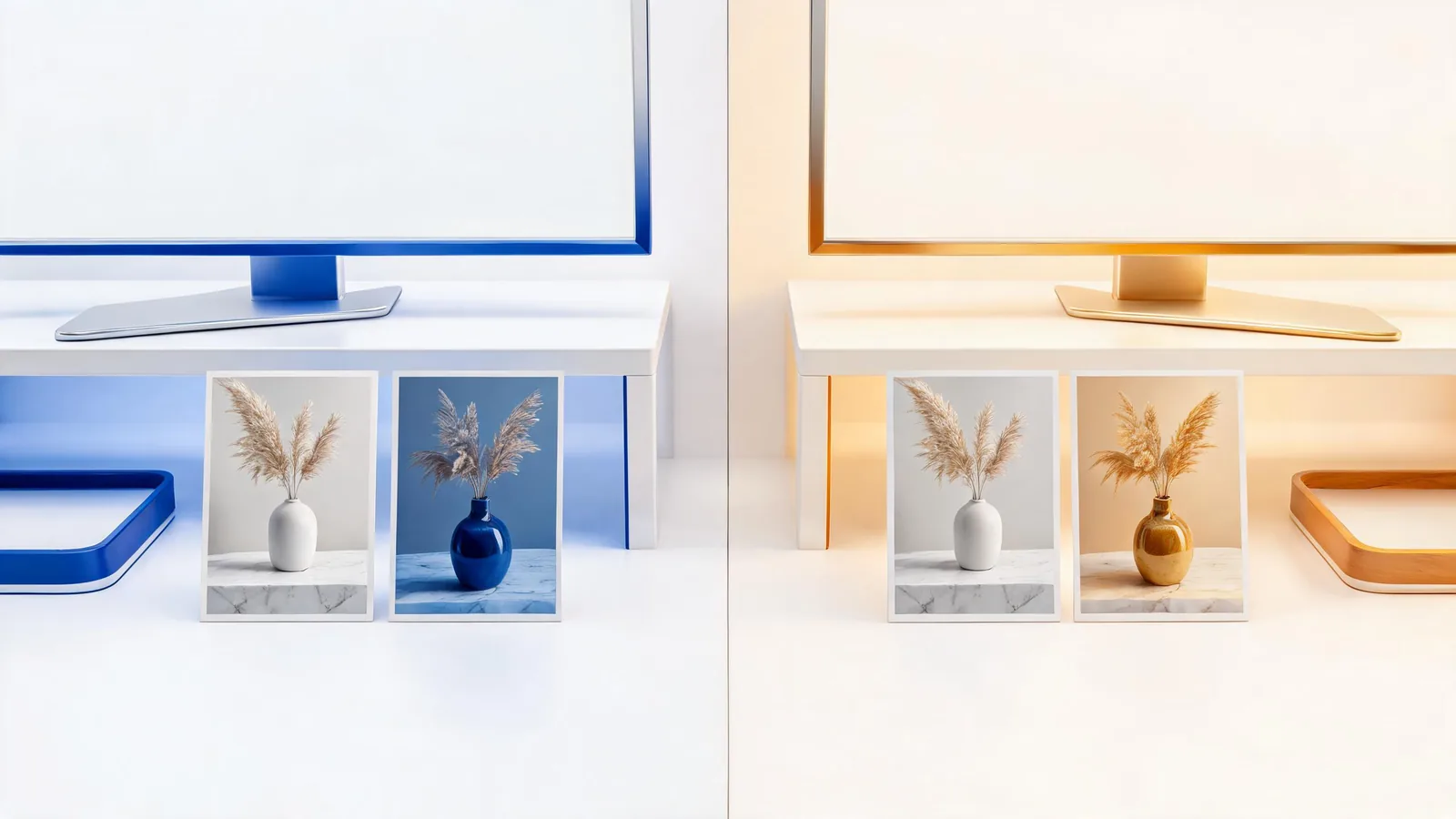
For a first Seedance image-to-image edit, choose Seedream 5.0 Lite when its visible quality choices or larger source-image allowance fit your test; choose Seedream 5.0 Pro when its available controls fit the same bounded brief. In the studio, both support image-to-image, Lite lists basic, high, and ultra quality with up to 14 images, and Pro lists basic and high with up to 10. Start with one permitted source and one visible change—not a claim that either model will reproduce every detail exactly.
Checked September 11, 2026 · model-selection and review guide
This guide answers one practical decision: which Seedream setting should a reviewer try first for a controlled still-image edit?
It is not a benchmark or a promise of image quality. A first edit is useful only when the team can say what must remain recognizable, what may change, and what would make the result unsuitable. The live Seedance studio is the source of truth for controls shown to your account at the time of submission.
What the studio actually supports
Seedance offers both models for text-to-image and image-to-image. They share the listed aspect-ratio family, but the studio gives them different quality lists, source-image limits, and prompt-length limits.
| Setting | Seedream 5.0 Lite | Seedream 5.0 Pro | How to use that fact |
|---|---|---|---|
| Image-to-image | Registered | Registered | Both are eligible for a controlled source-led edit. |
| Quality choices | Basic, high, ultra | Basic, high | Pick a visible option deliberately; do not treat the label as a result guarantee. |
| Maximum images | Up to 14 | Up to 10 | More inputs are an allowance, not an instruction to add unrelated references. |
| Prompt limit | 3,000 characters | 5,000 characters | A short preservation-first brief is easier to review than a long stack of requests. |
These are product-registration facts, not vendor-wide claims. A selector can change, a setting can be unavailable for an account, and a provider may expose different options elsewhere. Before generating, read the model name, mode, sources, quality, aspect ratio, and any displayed credit information in the studio.
Pick a model by the test, not a winner label
The best first choice is the model that lets you run a clean comparison with the fewest moving parts. That usually means one source image, one requested revision, and two or three protected details.
Start with Lite when the live screen shows the quality option you need for an exploratory visual direction, or when a single test has a defined role for several approved references. For example, a set might contain one source still plus a palette, material, and lighting reference. It does not mean every reference will be copied or that fourteen sources make the test more controlled.
Start with Pro when its visible controls fit your same first-edit brief, especially when your team wants to compare a concise source-and-revision pair against the existing Seedream 5.0 Pro first-edit guide. Pro’s longer registered prompt limit is not a reason to write a longer first prompt. Keep the request short enough that a reviewer can point to the intended change.
If neither model is visibly available with the mode or setting your assignment requires, stop rather than substituting an undocumented workflow. Record what the live screen showed and revise the test plan.
Build a first edit that can be reviewed
Choose a source you are allowed to edit. Avoid confidential material, a recognizable person without permission, protected characters, and exact packaging or legal copy. If the source itself is unclear, no model selection will make the output safe to approve. The image upload privacy checklist is a useful screen before the upload.
Write three short lines before you open the generator:
- Keep: the composition, the unbranded vessel silhouette, and the side-light direction.
- Change: only the background from pale stone to a deep-blue studio.
- Exclude: readable text, logos, people, extra products, and factual product claims.
Then turn that into one request:
Preserve the three-quarter composition, plain ceramic vessel silhouette, and soft side light. Change only the pale stone background to a deep-blue studio backdrop. Keep the label area blank. Do not add text, logos, people, or extra products.
The prompt does not guarantee preservation. It makes the intended comparison legible. A request that simultaneously changes the crop, material, setting, lighting, product count, and brand treatment creates no honest way to tell why a result drifted.
Use extra sources only when each has a job
An image allowance is useful when every input has a single, documented role. It is not a quality score. Before adding a second image, answer what decision it serves.
| Input role | A reasonable first-test use | Do not use it for |
|---|---|---|
| Source image | The composition or object relationship to protect | A stand-in for an image you lack rights to use |
| Palette reference | A narrow color direction | An implicit instruction to replace the subject |
| Material reference | One surface quality to explore | Exact branded packaging or a protected design |
| Lighting reference | The mood or direction of light | A promise that every shadow will match exactly |
Keep a copy of the original source. Record which model, mode, quality label, sources, prompt, and date you used. This modest trail is more useful than trying to infer settings from a saved result weeks later.
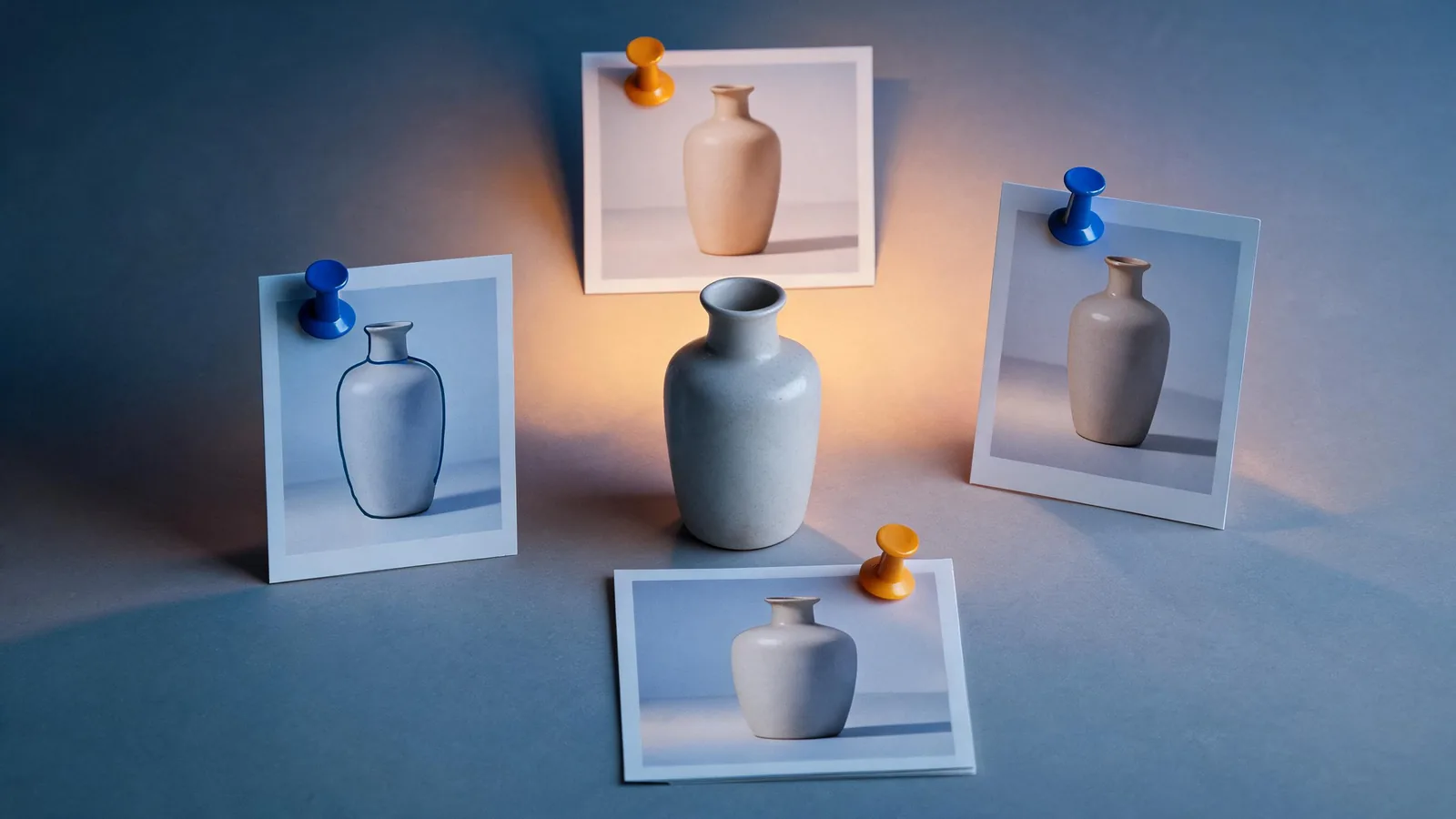
Compare the source and revision against the brief, not against a vague impression that one version looks more polished.
Review the result before you call it usable
Open the whole image at its intended crop and at a normal viewing size. Do not judge an edit from a thumbnail. A visually attractive result can still fail if it changes a protected silhouette, invents copy, or makes a source look like evidence of a real event or approved product.
| Review point | Pass when | Reject or revise when |
|---|---|---|
| Protected details | The named composition, shape, or light relationship remains usable | A critical element moves, changes, or becomes ambiguous |
| Requested change | The one new direction is clear | The named change is weak or unrelated changes dominate |
| Risky content | No invented text, logo-like mark, claim, or sensitive detail appears | The image could be mistaken for an approved factual or branded asset |
| Intended use | The team can state the next limited purpose | The result is being kept only because it is visually striking |
If a first result is nearly useful, change one visible variable on the next test. Keep the source and protected details fixed; adjust the background, a material reference, or the requested light direction—but not all three. For the later handoff from an approved still to motion, see the Seedance image-to-video guide.
Limits, rights, and disclosure
Seedance2-5.video is an independent creative platform, not ByteDance’s official Seedance site. The model facts above reflect the studio on September 11, 2026. They can change, and they do not establish pricing, commercial rights, or a particular output on another service.
Generated imagery can be useful for a concept review while still being unsuitable as product proof, legal copy, documentary evidence, or a final client asset. Keep the source-permission note and review decision with the work. For a client-facing release, use the commercial-use client video checklist and the current terms for the service actually used.
Frequently asked questions
Can I use both Seedream 5 Lite and Pro for image-to-image in Seedance?
Yes. The Seedance studio offers both Seedream 5.0 Lite and Seedream 5.0 Pro for image-to-image. Check the live selector before submitting because availability and account controls can change.
Which model should I try first for one image-to-image edit?
Use the model whose visible choices fit the test you can describe. In the studio, Lite has basic, high, and ultra quality choices with up to 14 images, while Pro has basic and high with up to 10. Use one permitted source and one bounded revision before treating either result as approved.
Does a higher quality label guarantee a better edit?
No. A quality label is a setting, not a guarantee that a result will preserve composition, identity, typography, product details, or rights. Review the complete output against the protected details in your brief.