
Grok Imagine Video Text-to-Video: First Prompt
Use one controlled Grok Imagine Video text-to-video prompt: choose the live Seedance setting, define one action and camera move, then review the full clip.
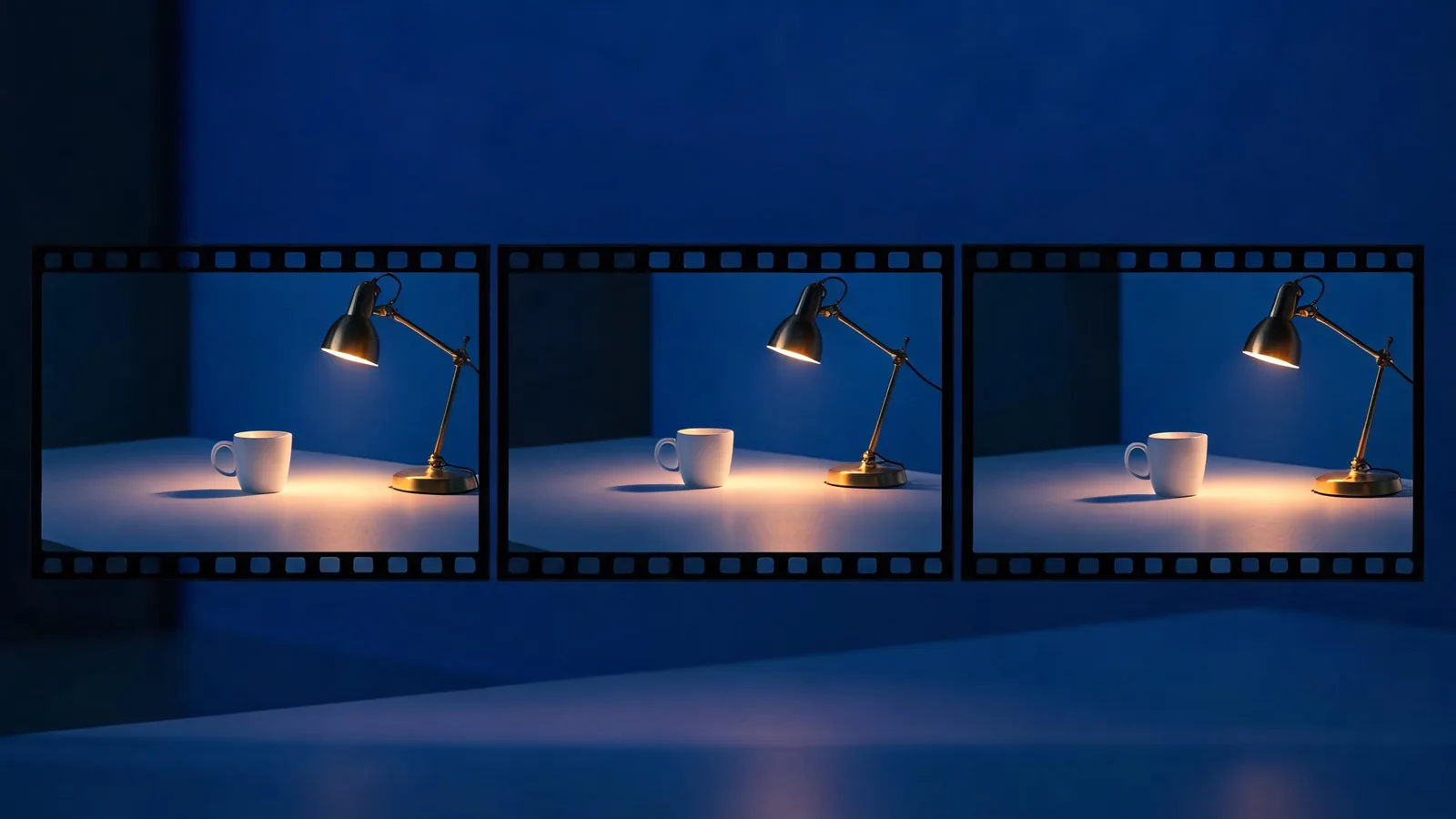
For a first Grok Imagine Video text-to-video run, select Grok Imagine Video and Text to Video in the live Seedance generator, then write one short scene with one subject action, one camera behavior, and a steady ending. As checked September 10, 2026, this generator registers Grok text-to-video at 480p or 720p for 6–30 seconds; confirm the visible settings and credit information before you generate.
Checked September 10, 2026 · practical first-render guide
This is a focused setup guide, not a promise about a particular result, account, price, or free allowance. The hosted interface can change, and different providers can expose different controls. xAI’s video-generation documentation is useful background on its video workflows; the Seedance AI generator is the authority for what this site will accept.
Use a first prompt as a controlled test
The goal of a first text-to-video prompt is not to make a finished commercial. It is to learn whether the chosen setting can hold one clear visual idea. A controlled request gives you a useful answer when it works and a diagnosable answer when it does not.
Before you write, choose a small scene that does not depend on exact text, a real person’s likeness, a product claim, or a complicated sequence of hidden actions. A cup on a table, a bicycle passing through an empty street, or a generic desk object in changing light is easier to inspect than a crowded event or a branded package.
Use this six-part structure:
- Subject: name one main thing the viewer should follow.
- Action: ask for one visible movement.
- Setting: give only the environment details needed to anchor the shot.
- Camera: choose one movement or a locked view.
- Protected details: identify the few features that must remain stable.
- Ending: state how the final frame should settle for an editor.
Here is a deliberately modest example:
A matte blue ceramic cup sits on a walnut table beside a small brass lamp at blue hour. A soft light slowly travels across the cup while a faint wisp of steam rises. Use one slow push-in. Keep the cup shape, table edge, lamp position, and light direction stable. End on a still close framing with the cup centered. No text, logos, extra objects, or sudden camera movement.
The details are not decoration. Each line gives you a review point: Did the cup remain recognizable? Did one light change occur? Did the camera move only once? Did the last frame leave a usable hold? If the answer is unclear, simplify rather than adding another flourish.
Confirm the live setting before you submit
Seedance’s Grok Imagine Video entry includes Text to Video and Image to Video. Its text-to-video configuration lists 480p and 720p outputs, 6–30 second durations, and several aspect ratios. That is a starting point, not a reason to bypass the current interface.
Use this short on-screen check immediately before each test:
| Check | Do this | Why it matters |
|---|---|---|
| Model | Select Grok Imagine Video deliberately | Your note should identify the model used. |
| Mode | Select Text to Video | A text-led test should not inherit an uploaded source. |
| Duration and resolution | Read the current selector | These choices affect the render and any displayed credit cost. |
| Aspect ratio | Match the destination, such as 16:9 or 9:16 | It is easier to judge composition in the final format. |
| Credit or eligibility message | Read it before clicking Generate | Do not rely on an old article or another account’s screen. |
If a selector is unavailable, a label differs, or a price is not what you expected, stop there. The correct next step is to use the setting presently shown or postpone the test—not to assume an undocumented alternative will work.
Make the prompt easier to diagnose
A prompt becomes difficult to review when it asks for several subjects, several camera moves, a location change, dialogue, choreography, and an exact ending at the same time. Any imperfect frame then has too many possible causes.
Start with one of these safe patterns:
| Goal | First prompt shape | Keep out of the first run |
|---|---|---|
| Product-like concept | One unbranded object, one light change, one slow push-in | Exact packaging text or performance claims |
| Atmosphere | One empty place, one environmental motion, locked camera | A second location or a surprise reveal |
| Character concept | One fictional adult, one small action, a medium shot | A real person’s likeness, crowd scenes, or lip-reading claims |
| Social cutaway | One object action, vertical frame, clean final hold | Multiple beat changes or embedded captions |
If your first result is almost useful, change only one variable on the next run. Keep the subject, duration, and camera instruction constant; then adjust either the action, the protected detail, or the ending. This practice is slower than chasing a dramatic prompt, but it produces notes you can actually reuse. For a broader prompt format after the baseline works, see the Seedance text-to-video prompt guide.
A first prompt works best when every instruction creates a visible review question.
Review the complete clip, not the preview frame
Watch the render from beginning to end. A strong thumbnail can conceal a jump, a drifting object, or an ending that is unusable in an edit. Record the displayed settings, prompt, date, and what you changed from the previous attempt.
| Review point | A useful first pass looks like | Pause or simplify when |
|---|---|---|
| Subject | The main subject stays legible | The subject changes shape or is replaced. |
| Action | The requested movement is recognizable | New or contradictory actions appear. |
| Camera | The view follows the one chosen instruction | Motion distracts from the subject or jumps abruptly. |
| Protected details | The few named details broadly hold | A required silhouette, placement, or light direction materially drifts. |
| Ending | The final frame can be held or cut from | The clip ends mid-transition or introduces an unwanted object. |
Call a result a concept pass only when it answers the visual question you set. It is not proof of a real event, product performance, consent, or future repeatability. Keep generated text and logos out of the first test if they need to be exact; add verified copy in a conventional editor later.
Rights, disclosure, and practical limits
Use source concepts and assets you have the right to use. Do not use a recognizable person without appropriate permission, and do not publish a synthetic scene in a way that makes it look like documentary evidence. Generated video can be a strong creative sketch while still needing human review before client, commercial, or public use.
Seedance2-5.video is an independent creative platform, not xAI or ByteDance. Availability, provider behavior, credits, and output quality can change. This guide does not guarantee commercial rights, legal suitability, account access, or a specific output. For a client-facing review before release, use the commercial-use client video checklist. If a result fails outright, use the generation troubleshooting guide rather than changing every setting at once.
Frequently asked questions
How do I start a Grok Imagine Video text-to-video prompt on Seedance?
Open the Seedance generator, select Grok Imagine Video and Text to Video, then confirm the visible duration, resolution, aspect ratio, and credit information. Submit one short, controlled scene rather than a full sequence.
What should a first Grok Imagine Video prompt include?
Include one subject, one visible action, one setting, one camera behavior, a few protected details, and a settled final frame. Remove the parts that cannot be judged in one short clip.
Can I assume a setting is free or always available?
No. The live generator is the source of truth for the setting, cost, and eligibility it shows at the time of your test.