
How to Control Motion Blur in Seedance 2.5 Prompts
Learn how to ask for less or more apparent motion blur in Seedance 2.5, diagnose unstable movement, and keep realism without false camera-setting promises.
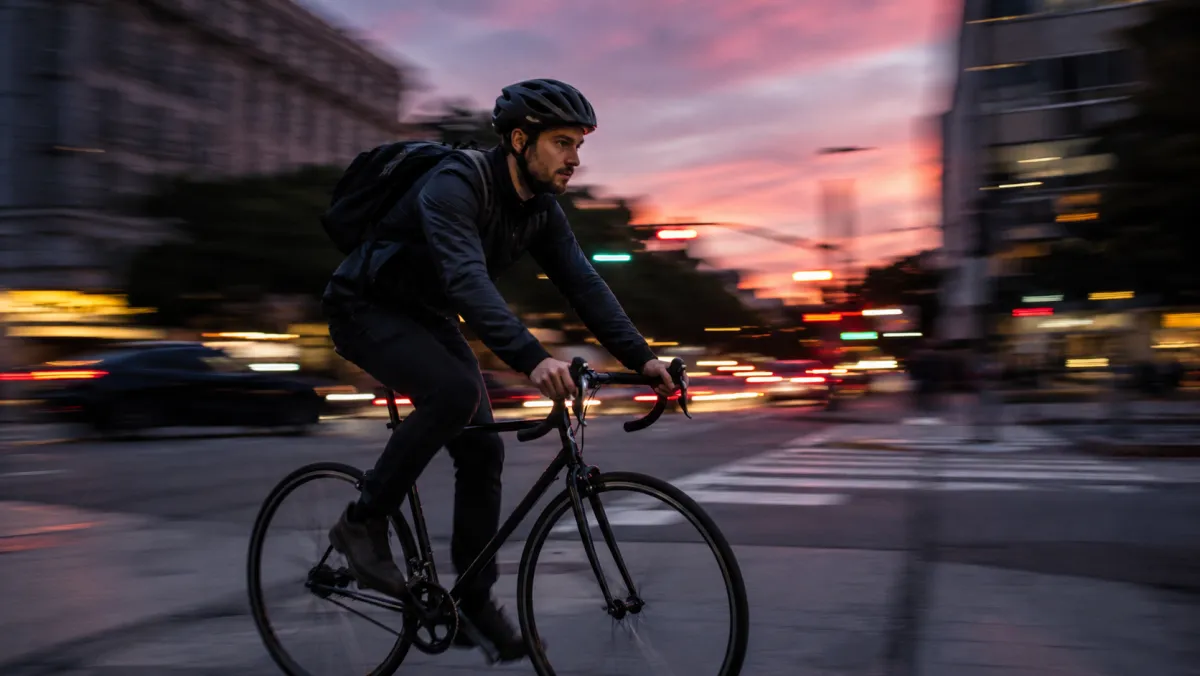
To control motion blur in a Seedance 2.5 prompt, reduce the number of moving things first, then state what should stay sharp and where motion should appear. AI video tools do not expose a precise physical shutter setting, so prompt language is a visual request, not a camera guarantee. Use Seedance 2.5 to test short clips, compare versions, and keep the one that looks believable for the scene.
Last updated: July 14, 2026 - about 7 min read
Why blur appears when you did not ask for it
Apparent blur usually comes from competing movement requests. A fast subject, moving camera, low light, crowd activity, rain, and a long orbit all ask the model to solve motion at once. When the image has too many jobs, faces, hands, product edges, and backgrounds are more likely to smear or warp.
Start by deciding what matters most:
- Is the subject meant to be sharp?
- Is the background meant to feel fast?
- Is the camera moving, or is the subject moving?
- Is the scene dark enough that a softer, smeared look makes sense?
You can normally protect two of those choices well. Asking for all four at maximum intensity is where a realistic AI video tends to break down.
Prompt for less blur
If your subject should stay clear, use a short, plain instruction:
Keep the main subject sharp and stable. Use one slow camera push-in. Keep the background mostly still. Natural daylight, clear edges, no fast motion, no motion smear, no sudden scene changes.
Then remove anything that conflicts with it. Do not pair "locked camera" with "rapid orbit," or "sharp face" with "fast running through a crowded night street." Generate a short clip first. If it still looks soft, simplify the source image and reduce the action before adding more negative phrasing.
Prompt for intentional movement
Sometimes a small amount of blur makes motion feel more physical. Ask for it to live in one place:
Keep the cyclist and bicycle readable. Add a modest directional blur only to the background as the camera tracks alongside. Preserve the rider's face, clothing edges, and bicycle shape. End on a stable frame.
That is more specific than asking for "cinematic motion blur." It tells the model what should move, what should remain legible, and when the shot should resolve.
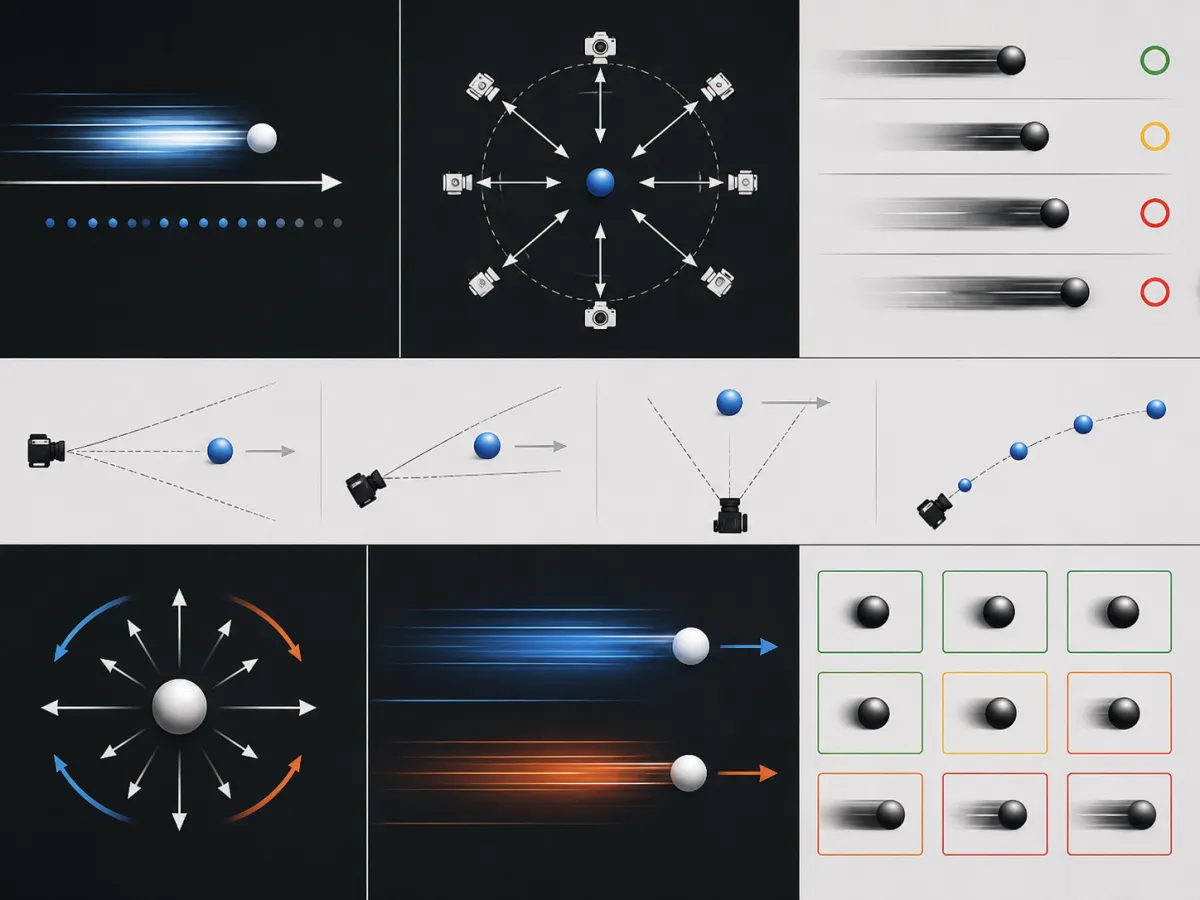
Use a prompt to establish visual priorities. It is not an exact substitute for manual camera controls or post-production blur tools.
A quick diagnostic chart
| Symptom | Likely cause | First adjustment |
|---|---|---|
| Face or product edge smears | Too much subject and camera motion | Keep one motion, lock the other |
| Entire frame is soft | Low-light mood plus broad movement | Use brighter light and shorter action |
| Background jitters | Too many moving objects | Remove crowds, weather, and extra props |
| Motion feels frozen | Overly strong stability language | Add one gentle camera or subject movement |
| Shape changes during action | Source details are too complex | Start from a clearer, simpler reference |
Start with the reference image
A sharp reference makes a bigger difference than a longer prompt. Use clear subject edges, simple light, and enough empty space for the intended movement. Busy patterns, tiny labels, hands covering faces, and dense backgrounds give the model fewer stable anchors.
For a product, protect the silhouette, color, and label area. For a person, protect face, clothing, and pose. For a location, protect the horizon and major lines. The goal is not to freeze every pixel; it is to give the model clear priorities.
Do not confuse blur with realism
Realistic motion is not automatically blurry. A slow push-in can feel more natural than a fast camera move with artificial smear. Use blur only when it helps the story: speed, a passing background, or a deliberate transition. Otherwise, clarity is usually more useful for social clips, product shots, and editable footage.
For more ways to stabilize motion, read Seedance realistic motion, the negative prompt guide, and camera movement prompts.
Frequently asked questions
Can I set an exact shutter speed in Seedance 2.5?
No. Prompted AI video does not give you reliable physical shutter-speed control. You can describe the visual outcome you want, such as a sharp subject with a gently blurred background, then test short versions.
How do I make an AI video less blurry?
Reduce simultaneous motion, use a clear reference image, specify what must stay sharp, and keep the camera or subject movement simple. Generate short clips and revise one variable at a time.
Should I add "no motion blur" to every prompt?
Only when sharpness is important. Strong negative language can make a shot feel static if the scene needs movement. State the desired visual priority instead of adding a long list of bans.
Test one movement at a time
Open Seedance 2.5, start with a simple reference and a short motion request, then add complexity only after the clip stays readable.