
How to Access Seedance 2.5 Online Without Complex Setup
Learn how to access Seedance 2.5 online in a browser, choose text-to-video or image-to-video, prepare references, and generate AI videos without local setup.
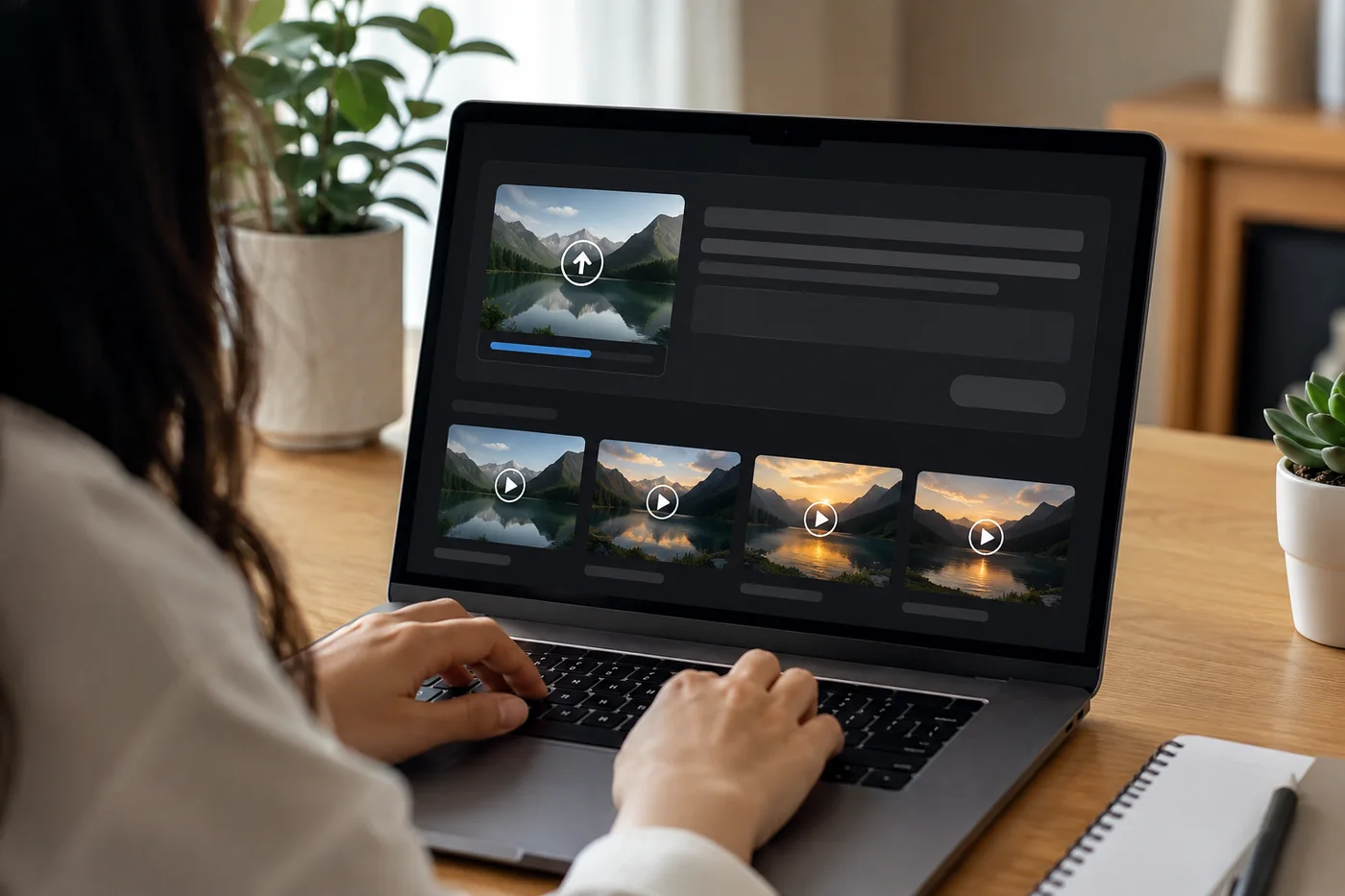
You can access Seedance 2.5 AI online through a browser workflow instead of setting up a local environment, API script, or model pipeline. For most creators, that is the practical path: open the web studio, choose the right generation mode, prepare a prompt or reference image, render, review, and download the clip.
This guide is for people who want to try Seedance 2.5 without complex setup. It explains the difference between text-to-video and image-to-video, what to prepare before you render, and how to avoid wasting early credits on unclear prompts.
Concept visual: online access is most useful when the workflow is planned before generation.
Quick Answer: Use the Browser Studio
The simplest way to use Seedance 2.5 online is to start from the browser studio, sign in, and choose the mode that matches your source material. If you already have an image, use image-to-video. If you have a written scene idea, use text-to-video. If you are comparing model workflows, start with a short test before spending credits on longer clips.
The main advantage of online access is speed. You do not need to install software, configure local compute, or manage API requests before seeing a result.
Choose Text-to-Video or Image-to-Video First
The biggest setup mistake is choosing the mode too late. Text-to-video and image-to-video need different preparation. Text-to-video depends on a clear scene description. Image-to-video depends on a strong starting image and motion instructions that protect important details.
| Mode | Use it when | Prepare this first |
|---|---|---|
| Seedance 2.5 text to video | You want to create a scene from a written idea. | Subject, setting, action, camera, mood, and duration. |
| Seedance 2.5 image to video | You want to animate a specific product, person, object, or reference image. | A clean image, protected details, and a motion prompt. |
Prepare a Clean Reference Before Uploading
If you use image-to-video, your starting image matters. Pick an image with a clear subject, enough resolution, and simple composition. Avoid blurry crops, heavy filters, tiny subjects, and cluttered backgrounds. The model should not have to guess what the main object is.
For product clips, use a photo where the product shape is easy to read. For portraits, use a clear face and avoid extreme shadows. For environments, choose a scene where the camera movement will make sense. A good reference image can save more time than a longer prompt.
Use a First-Session Plan
A first Seedance session should be small and deliberate. Choose one source image or one text scene. Decide what a successful result would show. Then create a first prompt that tests only that goal. If you want a product ad, test a slow push-in or gentle rotation. If you want a portrait clip, test subtle natural motion. If you want a cinematic scene, test one camera move before adding complex action.
This plan keeps the online workflow calm. Without it, it is easy to spend time switching modes, changing prompts, and rerendering without learning what improved the clip.
Write a Prompt That Controls Motion
A Seedance prompt should say what moves and what stays stable. Do not only describe the image. Describe the action: slow camera push-in, gentle hair movement, product rotating slightly, steam rising, fabric moving in a breeze, or light shifting across a surface. Motion language is what turns a still idea into a video plan.
If you are new, start with one motion and one camera direction. The camera movement prompt guide explains pan, zoom, dolly, and orbit language in more detail.

Concept visual: a simple upload, prompt, render, review, download sequence is enough for most first tests.
Check Credits and Pricing Before Longer Tests
Online access does not mean every render is unlimited. Check Seedance 2.5 pricing before planning a batch. Use shorter or simpler tests to learn the prompt style, then spend more credits on the stronger direction.
A good practice is to write a small render log. Note the prompt, reference image, duration, and what changed. If the first render is close, adjust one thing. If it fails completely, simplify the scene before trying again.
Common Online Access Mistakes
The most common mistake is treating online access as a shortcut around planning. A browser studio removes setup friction, but it does not write the creative direction for you. Another mistake is using a reference image that conflicts with the prompt. If the photo shows a still product on a table, but the prompt asks for a crowded street scene, the model has to reconcile two different ideas.
A third mistake is ignoring the review step. Downloading the first render because it looks exciting can lead to warped hands, unstable products, or motion that does not fit the platform. Watch the whole clip before you decide whether the prompt worked.
Use Existing Guides When You Need Structure
If you are not sure where to begin, start with a guide that matches your mode. The Seedance 2.5 image-to-video guide is useful when you already have a reference image. The Seedance 2.5 AI video generator guide is better when you want the broader workflow. If you are comparing model choices, the Seedance 2.5 vs Veo page can help frame the decision.
A Simple First Prompt Formula
For a first online test, use this order: subject, setting, motion, camera, and quality guardrail. A product example might say: "ceramic coffee mug on a wooden table, morning window light, gentle steam rising, slow camera push-in, keep the logo area stable." A portrait example might say: "adult portrait in soft daylight, subtle natural head movement, gentle hair motion, camera remains steady, keep facial identity stable."
This formula keeps the prompt readable and reduces guesswork. After the first render, change one part of the formula at a time. That is the fastest way to learn what Seedance 2.5 responds to in an online workflow.
Bottom Line
Accessing Seedance 2.5 online is straightforward if you decide your mode before writing the prompt. Use text-to-video for written scenes and image-to-video for reference-driven clips. Prepare clean inputs, control motion in the prompt, track credits, and review each render before making the next one more ambitious.