
Seedance 2.5 AI Video Generator: What It Is and How to Use It
Seedance 2.5 AI is built for longer, more controllable AI video. Learn what the model changes, how to plan a clip, and how to start from text or image prompts.
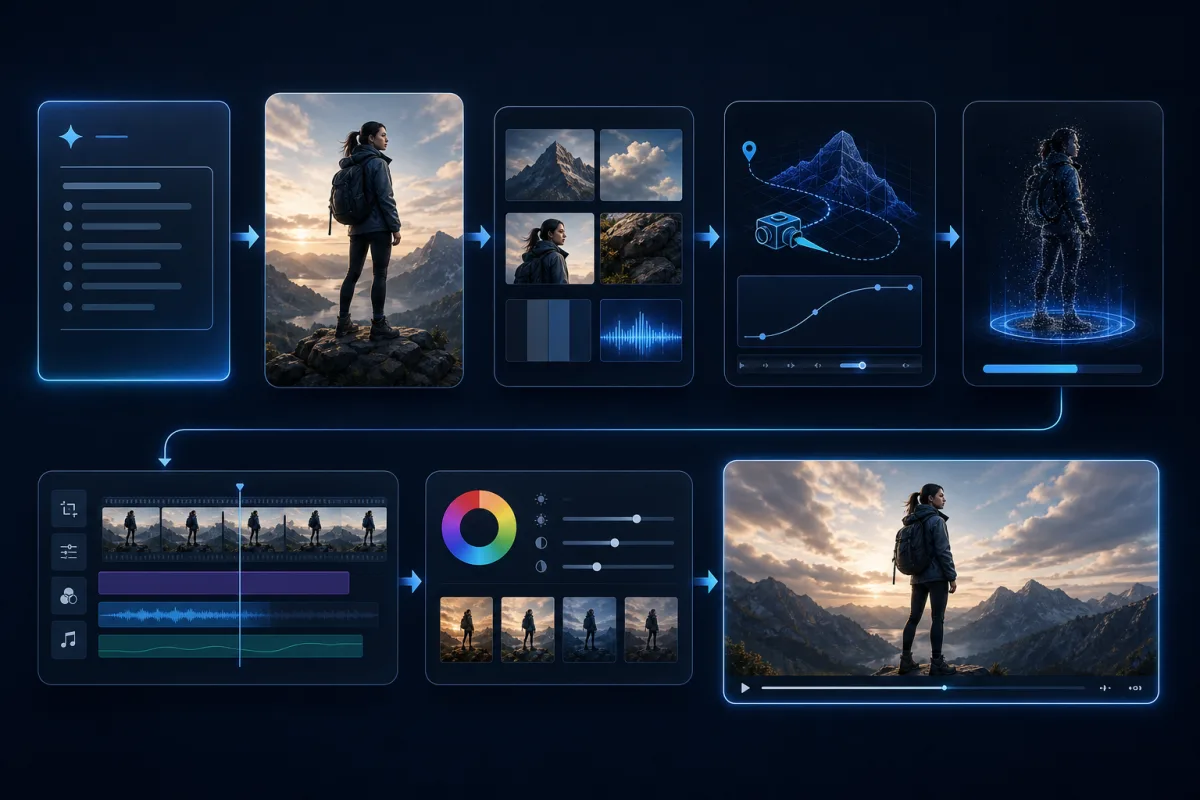
Seedance 2.5 AI is the next step in ByteDance's video generation line: longer single clips, higher-quality output, more reference control, and more practical editing. If you want to use a Seedance 2.5 AI video generator, start by planning the clip structure first: subject, scene, camera, motion, references, and final use.
Last updated: June 30, 2026 - about 8 min read
Seedance 2.5 matters because AI video is moving from short visual demos toward production workflows. A useful model does not only make a pretty four-second shot. It helps creators keep a scene coherent, control assets, and generate clips that can actually fit into ads, social posts, product videos, explainers, and cinematic tests.
One important note before we go further: Seedance 2.5 is treated here as the upcoming/next-generation model focus. On this site, the visible studio may offer currently available Seedance options while Seedance 2.5 availability rolls out. Always check the generator controls before you start a paid render.
What is Seedance 2.5 AI?
Seedance 2.5 AI is a video generation model direction focused on longer, more controllable creation. The key ideas are:
- Native longer clips instead of only tiny fragments.
- Stronger image-to-video and text-to-video workflows.
- Multi-reference input for characters, products, scenes, and style.
- More editable outputs, so a clip can be refined instead of restarted.
- Higher quality output for production-style use cases.
For creators, the practical question is not "is the model impressive?" It is "can I plan a clip and get something usable without stitching together a dozen unrelated shots?"
The best way to use a Seedance 2.5 AI video generator
Do not start with a huge prompt. Start with a small creative brief.
- Choose the mode. Use text-to-video when you do not have a source frame. Use image-to-video when you already have a product image, portrait, concept frame, or storyboard still.
- Define the clip job. Is this a product ad, cinematic shot, social hook, character moment, or explainer scene? One clip should have one job.
- Write the motion plan. Name the subject, action, camera movement, and timing. Avoid asking for too many scene changes in one render.
- Add references only when they help. References should clarify identity, product shape, style, or environment. More references are not automatically better.
- Render a short test first. Check motion, identity, and composition before spending credits on longer or higher-quality output.
This planning step matters more as models get stronger. Powerful models give you more range, which means vague prompts can drift further from what you wanted.
Text-to-video vs image-to-video
Both workflows are useful, but they solve different problems.
| Workflow | Use it when | Best for |
|---|---|---|
| Text-to-video | You have an idea but no source image | Cinematic scenes, concepts, social hooks |
| Image-to-video | You already have the look or subject | Product shots, portraits, real images, design frames |
| Reference-guided workflow | You need consistency | Characters, brand assets, product variants |
If you care about a specific product, person, or design, image-to-video is usually safer. If you care more about inventing a scene, text-to-video is faster.
A 30-second clip needs a structure
Longer AI video is powerful, but it also needs planning. A 30-second clip should not be one giant prompt. Treat it like a tiny storyboard:
| Time | Clip job | Example |
|---|---|---|
| 0-5 seconds | Hook | Product appears in dramatic light |
| 5-12 seconds | Motion | Camera pushes in as the scene changes |
| 12-20 seconds | Detail | Texture, character, or product feature becomes clear |
| 20-27 seconds | Payoff | Final reveal or emotional beat |
| 27-30 seconds | Hold | Clean ending for caption or cut |
This makes your prompt easier to write and easier to judge. If the render fails, you can tell whether the issue is the hook, motion, detail, or ending.
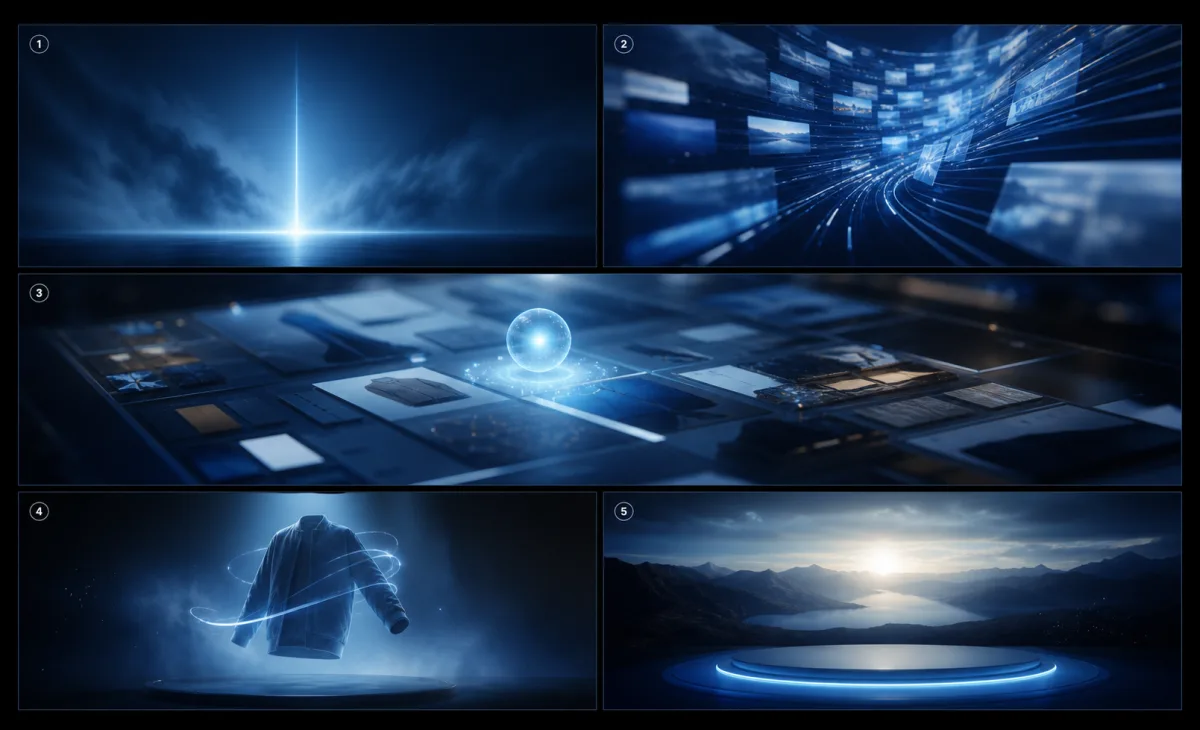 a five-part storyboard showing how to plan a longer Seedance AI video clip.
Seedance prompt example
Here is a practical structure for a product-style clip:
A premium skincare bottle on a clean stone surface at sunrise. Slow camera push-in, soft mist drifting in the background, warm highlights on the glass, realistic reflections, calm luxury mood. Keep the bottle shape stable and centered. End on a clean hero shot.
Why it works:
- It names the subject.
- It gives the camera movement.
- It describes atmosphere without changing the product.
- It protects the product shape.
- It defines the ending.
For text-only scenes, use the same structure but define the scene more clearly. For image-to-video, describe motion around the source image instead of rewriting the whole scene.
What to check before exporting
Before you publish an AI video, check:
- Does the subject stay consistent?
- Are hands, faces, product edges, or text-like details distorted?
- Does the camera move match the prompt?
- Is the clip long enough for the platform?
- Is the ending clean enough to cut or caption?
- Are you allowed to use every uploaded reference?
AI video is still a generated medium. Use it with clear rights, consent, and realistic expectations.
Frequently asked questions
Is Seedance 2.5 available now?
Availability can change quickly. Treat Seedance 2.5 as the next-generation model focus and check the live generator controls for which Seedance option is currently selectable before rendering.
What is Seedance 2.5 AI best for?
It is best suited for creators who want more controllable AI video: longer clips, stronger reference use, image-to-video, text-to-video, and workflows that need consistent subjects or production-style outputs.
Should I start with text-to-video or image-to-video?
Start with text-to-video if you only have an idea. Start with image-to-video if you already have a product photo, portrait, concept frame, or visual direction you want to preserve.
Is Seedance 2.5 free?
Check the Seedance 2.5 free and pricing pages for the current access model. Free trials, credits, and watermarks can change, so confirm before a batch render.
Related guides
- Seedance 2.5 AI video generator
- Seedance 2.5 text-to-video
- Seedance 2.5 image-to-video
- Seedance 2.5 free
- Generate a video
Plan the clip before you render
Open the Seedance 2.5 AI video generator, decide whether your idea needs text-to-video or image-to-video, and write a short scene plan before you spend credits. Better planning usually beats longer prompting.