
Seedream Style Transfer: Keep Your Subject, Change the Look
Try Seedream style transfer with a source image, clear preservation instructions, and an optional style reference. Check subject and composition drift.
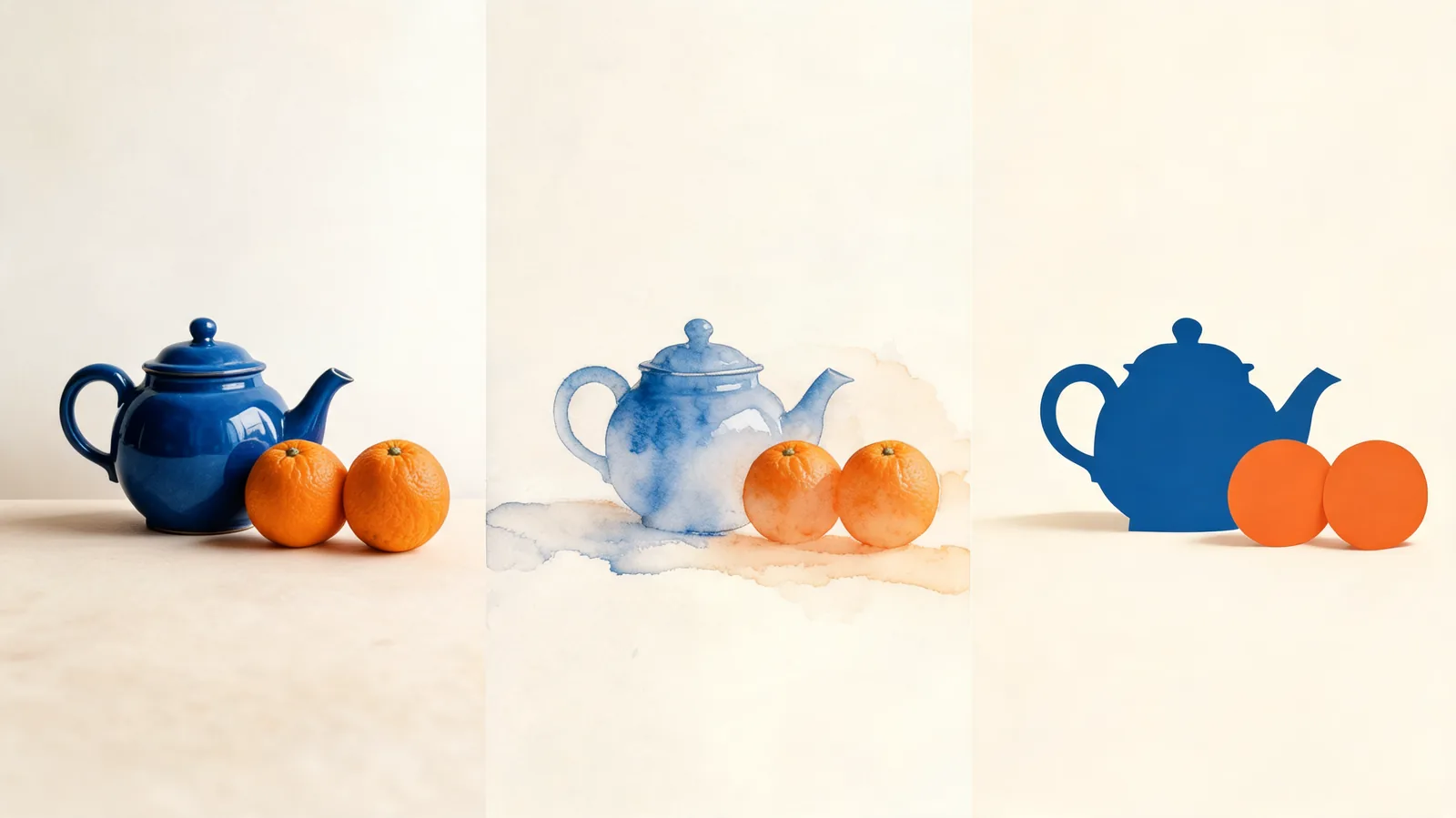
To try Seedream style transfer, use image-to-image with a permitted source, name the visual medium you want, and specify which subject details and composition should stay recognizable. In the Seedance studio, Seedream 5.0 Pro offers this image-editing workflow; there is no separate style-transfer control. Begin with one subject image, add a style reference only if needed, and compare the result with the source before accepting it.
Updated October 9, 2026 · Source-image restyling workflow
A photograph becoming a watercolor or a flat illustration changes more than its colors. Edges, texture, lighting, and detail can all shift. The useful question is whether the new treatment still serves the original subject. The hero is a conceptual illustration of changing visual media, not a measured before-and-after result.
Decide what “keep the subject” means
Choose the few details that carry recognition. For a teapot, that might be the round body, curved spout, handle placement, and relationship to nearby objects. For a permitted portrait, it might include facial proportions and a characteristic hairstyle. “Keep everything identical” is rarely a practical acceptance rule for an edit that deliberately changes the medium.
Separate recognizable structure from the appearance you want to replace. A watercolor request may soften a hard edge. A paper-cut illustration may simplify reflections. Neither change automatically means the subject was lost, but a new spout shape or missing handle can make a product concept unusable.
| Source property | Keep or change? | Example instruction |
|---|---|---|
| Main subject silhouette | Usually keep | Preserve the teapot's round body and curved spout |
| Object arrangement | Usually keep | Keep the two oranges in their existing positions |
| Surface texture | Change for the medium | Replace photographic texture with translucent watercolor washes |
| Lighting detail | Simplify if appropriate | Retain the light direction but soften small reflections |
| Exact text or logo | Review separately | Do not generate new lettering; retain approved copy in an editor |
If you only need a background swap, the controlled first-edit guide is the more focused workflow. This guide addresses a different task: changing the overall visual language while keeping a recognizable subject.
Prepare a source that makes drift easy to see
Use a clear image that you own or have permission to edit. Start with one subject and a simple composition if you are learning the workflow. A crowded source makes it harder to distinguish intentional simplification from missing objects.
Inspect the source at the crop you expect to use. If a handle is cut off or a face is tiny, there is less visible information to compare later. Do any necessary crop preparation before the test, and keep that same version for subsequent attempts. A different crop changes the task even when the prompt stays the same.
Remove sensitive material before uploading and consult the image-upload privacy checklist when permission is unclear.
Write a short acceptance statement before generating: “The teapot remains recognizable in the original arrangement, but looks painted rather than photographed.” That gives the first result a concrete job without demanding identical pixels.
Set up image-to-image in the studio
Open the Seedance studio, select Seedream 5.0 Pro, and choose image-to-image. Upload the subject source and confirm that it appears among the inputs. Select the visible aspect ratio and quality appropriate to the intended image, and read the current credit cost before submitting.
The Pro workflow supports multiple images, but the first test does not need them. One source plus a clear description often makes the roles easiest to understand. Available controls can change; use the settings offered by the active model, and do not assume there is a style-strength slider, identity lock, mask tool, or separate preset panel.
ByteDance's Seedream 5.0 Pro announcement, published July 8, 2026, discusses image editing and combining references. It also acknowledges room to improve pixel-level consistency. Vendor demonstrations describe model capabilities; they do not establish that every demonstrated interface control exists in this studio.
Describe the medium, then protect the structure
“Make it artistic” leaves too many decisions open. Name the medium and two or three visible properties of that medium. Watercolor could mean translucent washes, visible paper grain, and soft pigment edges. Flat illustration could mean clean shapes, restrained shading, and a limited palette.
For the teapot example, use a request like this:
Restyle the uploaded still life as a watercolor illustration on off-white paper. Preserve the round blue teapot, its curved spout and handle, the positions of the two oranges, and the existing camera angle. Use translucent washes, subtle paper grain, and soft pigment edges. Simplify small reflections. Do not add objects, lettering, or a signature.
This is a suggested input, not a claimed successful render. Its preservation instructions are observable: a reviewer can check the silhouette, count the oranges, and compare the angle. Its style instructions are also observable: the result should read as watercolor rather than a photograph with a color filter.
For another medium, change only the treatment:
Restyle the same source as a flat editorial illustration. Preserve the subject silhouette, object arrangement, and camera angle. Use simple solid-color shapes, a blue and warm-orange palette, and minimal shading. Do not add new objects or text.
Avoid combining a new medium with a new viewpoint, pose, background, and object arrangement in the first attempt. If several things change, you cannot easily tell which instruction caused the subject to drift.
Give an optional style reference a limited role
A second image can clarify a texture or palette that is difficult to describe. It can also introduce unwanted objects and composition. Use it only when you can explain the specific visual quality you need and have permission for that use.
Keep the subject source and style reference clearly distinguishable in the upload order. Refer to the inputs explicitly in the prompt, using the order visible in the studio:
Use Image 1 for the teapot, oranges, arrangement, and camera angle. Use Image 2 only for its watercolor texture, soft edges, and restrained palette. Restyle the subjects from Image 1 without importing objects, lettering, or composition from Image 2.
This role assignment is an instruction, not an enforcement mechanism. Review whether the result followed it. If it borrows a chair or window from the second image, remove that reference and describe the desired marks or colors in words. Adding more references can make that confusion worse.
Describe the medium and visual qualities rather than asking to reproduce a particular artist's work.
Compare source and result side by side
Keep the original available while reviewing the output. Look first at what identifies the subject, then at whether the new medium is convincing. Do not let an appealing palette hide a structural error.
The following is a review example, not an observed test result:
| Before: source condition | After: intended result | Drift that would fail the brief |
|---|---|---|
| Round teapot with one handle and curved spout | The same recognizable outline drawn in watercolor | Extra handle, shortened spout, or a different body shape |
| Two oranges beside the teapot | Two painted oranges in the same arrangement | Missing orange or extra fruit |
| Three-quarter viewpoint | The viewpoint remains usable | Unrequested overhead composition |
| Glossy ceramic reflections | Simplified painted highlights | Reflections become invented markings |
| Plain background with no text | Quiet paper texture with no lettering | Added signature or decorative words |
Review both at normal viewing size and close enough to notice important details. For a portrait, examine facial proportions, hairline, accessories, and any distinctive marks. For a product, inspect geometry and labels. For an architectural source, check windows, edges, and relationships between structural elements.
Use a specific decision note: “Watercolor treatment works; the handle is incorrect.” That separates a usable visual direction from a failed subject detail. “Looks good” offers little guidance for the next attempt.
Fix one mismatch at a time
If the subject changes too much, return to the original source, reduce the number of simultaneous style instructions, and state the key structure more plainly. If the result barely changes, describe the medium more concretely. If objects from a style reference leak into the output, remove the reference before revising several other settings.
Keep the same source and model while changing one likely cause. Repeatedly editing the previous output can compound drift: a small shape change becomes the input for the next revision. Use the original whenever preservation matters, and keep alternate outputs as separate candidates.
Stop using generation for an exactness problem it cannot reliably solve. Approved lettering, product dimensions, and a person's exact identity may require conventional editing or a designer's reconstruction. Restyling is useful for visual direction; it does not turn a generated image into proof of a real product or event.
An approved still may become a source for image-to-video, but approve it first. Motion can introduce new drift even when the starting illustration is satisfactory.
Scope and disclosure
The Seedance 2.5 Editorial Team maintains this guide for the studio's available image workflow as of October 9, 2026. Seedance2-5.video is independent and is not affiliated with ByteDance. The examples are proposed prompts and review criteria, not a benchmark or a claim that every protected detail will survive.
Keep the permitted source, prompt, selected settings, and approval note with the final file. When sharing a restyled concept, describe it as generated or edited imagery where that context matters. Preserve the original source for any later factual or brand comparison.
Frequently asked questions
How do I try Seedream style transfer in Seedance?
Choose Seedream 5.0 Pro and image-to-image in the studio, upload a permitted subject image, and describe the new medium while naming the details to preserve. Review the result against the source; there is no separate style-transfer control.
Do I need a second image as a style reference?
No. Start with one subject source and describe the medium in words. Add a permitted style reference only when its texture, palette, or mark-making would make the instruction clearer, and state that it must not replace the subject.
Can style transfer preserve a face or product exactly?
No. Restyling can change identity, geometry, text, and small details. Review those elements independently, and use conventional editing when exact preservation is required.
Why did the output copy objects from my style reference?
A reference can influence content as well as style. Clarify that the subject source controls objects and composition and that the second image supplies only the named visual qualities. If copying continues, remove the extra reference and describe the style in words.