
seedream prompt guide: Clear Instructions for Image Edits
Write Seedream image-edit prompts with two real same-source edits, exact instructions, current studio controls, and a visible framing limitation.

Write a Seedream image-edit prompt in this order: the change, the appearance you want, and the details to keep. For example, specify a muted blue backdrop and ask to preserve the face, shirt, and mug. This Seedream prompt guide shows two real edits from the same portrait in Seedance image editing. Both changed the background, but even the detailed instruction failed to preserve the original framing.
1. What should a Seedream image-edit prompt include?
Name the action and its target, describe the replacement, and list the visible details that should stay unchanged. For a background edit, distinguish the backdrop from the person, clothing, and props in front of it.
| Prompt component | What it controls | Wording from the detailed request |
|---|---|---|
| Action and target | Where to make the change | Replace only the background |
| Desired appearance | Color and backdrop treatment | A plain muted blue studio backdrop |
| Details to preserve | Features to check after editing | The adult's face, green overshirt, mug shape, crop and lighting |
| Exclusions | Unwanted additions | Add no objects or text |
Use ordinary sentences to connect those parts. A tag list such as “blue, portrait, ceramic, studio, realistic” leaves the role of blue unclear: it could describe the shirt, mug, or background. For this task, “replace the background” gives the color a target.
ByteDance's Seedream 5.0 Lite introduction, published February 13, 2026, includes natural-language editing examples. The instructions below use the image-edit controls available in this studio as of October 22, 2026.
2. Set up Image → Image before comparing prompts
Open the Seedance studio, select Seedream 5.0 Lite, and choose Image → Image. Upload an image you own or have permission to edit. The uploader accepts JPG, PNG, and WebP files up to 12MB.
| Studio setting | Seedream 5.0 Lite | Seedream 5.0 Pro |
|---|---|---|
| Image editing mode | Image → Image | Image → Image |
| Quality choices | Basic, High, Ultra | Basic, High |
| Prompt length limit | 3,000 characters | 5,000 characters |
| Output formats | PNG or JPEG | PNG or JPEG |
| Basic generation cost | 69 credits | 88 credits |
Generation requires sign-in and sufficient credits. There are no free starter credits; see pricing for current plans and credit packs. Check the studio's credit estimate before submitting.
Both edits below used the identical source with Lite, Basic quality, a requested 16:9 output ratio, and PNG output. The source was a vertical 3:4 portrait, so the wide output setting also asked the model to change the composition. For your own background-only edit, match the output ratio to the source before generating.
3. Start with one clear change
Our source shows a fictional adult ceramicist in a green overshirt holding an off-white mug against a light gray backdrop. The first request was:
Make the background blueThe output has a saturated blue background and retains a centered person in a green shirt holding one mug. The short request leaves the shade and backdrop treatment to the model.
That may be enough if any blue backdrop suits your purpose. If you need a quieter background, the next revision should specify that choice. Adding camera jargon or a new lighting style would introduce changes unrelated to the task.
4. How can you ask for a specific backdrop and preserve the subject?
Describe the backdrop precisely, then name the subject details you want preserved. Treat those details as instructions to check against the output; they do not guarantee an identical face, object, or crop.
For the second edit, we returned to the original gray-background portrait and submitted:
Replace only the background with a plain muted blue studio backdrop; preserve the adult's face, green overshirt, mug shape, crop and lighting; add no objects or text.“Muted” specifies a less vivid color. “Plain” and “studio backdrop” describe the surface behind the person. The preservation clause identifies the face, clothing, mug, framing, and lighting as details that should remain.
This output has a softer blue background than the first. It still shows a recognizable subject facing forward in a green overshirt, holding one plain mug. Neither result has visible lettering or an extra prop.
5. Compare the backdrop and framing separately
These are the original source and both actual outputs. The person is fictional; all three images were created for this demonstration.
| Original source | Short request | Detailed request |
|---|---|---|
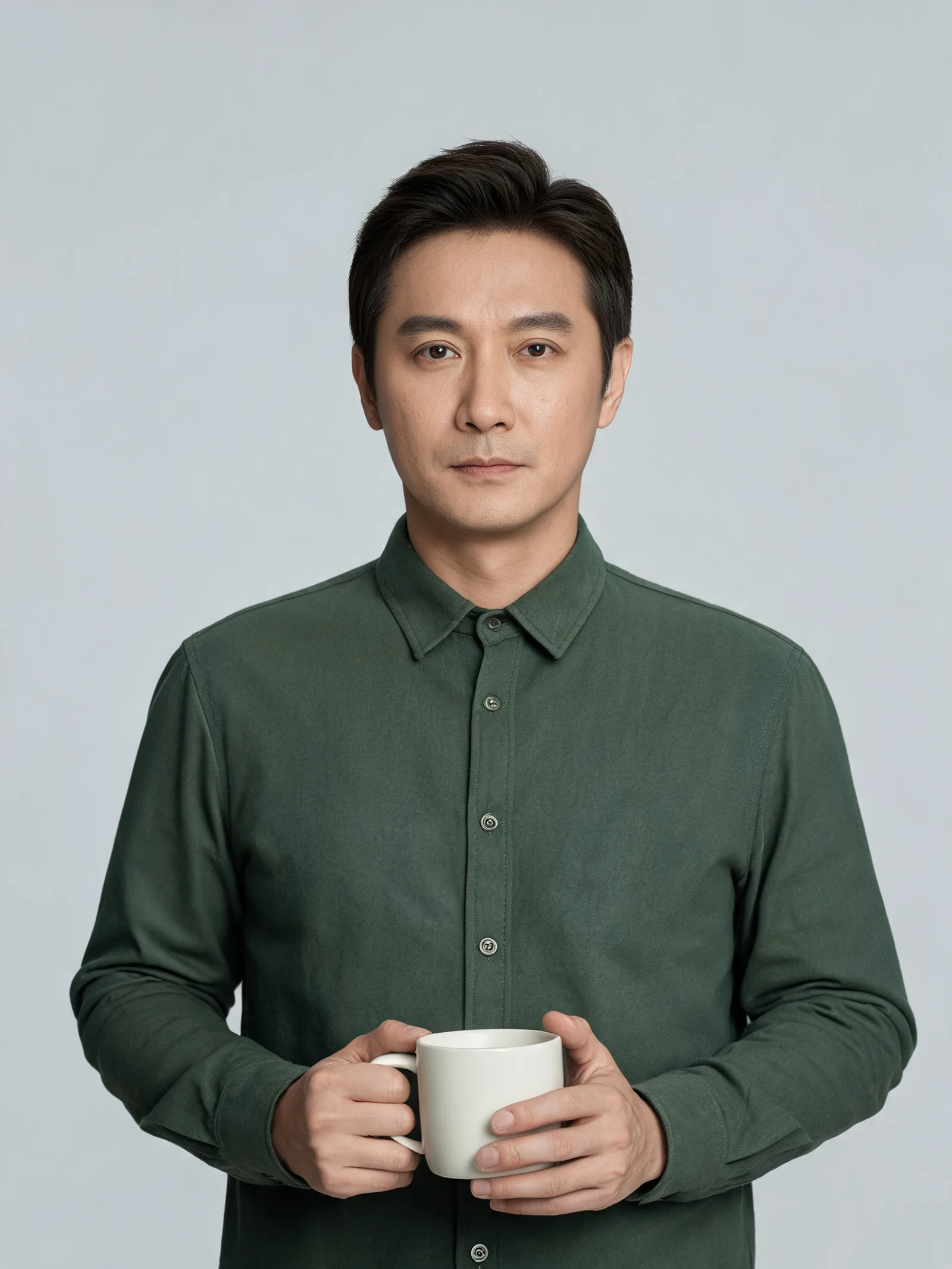 | 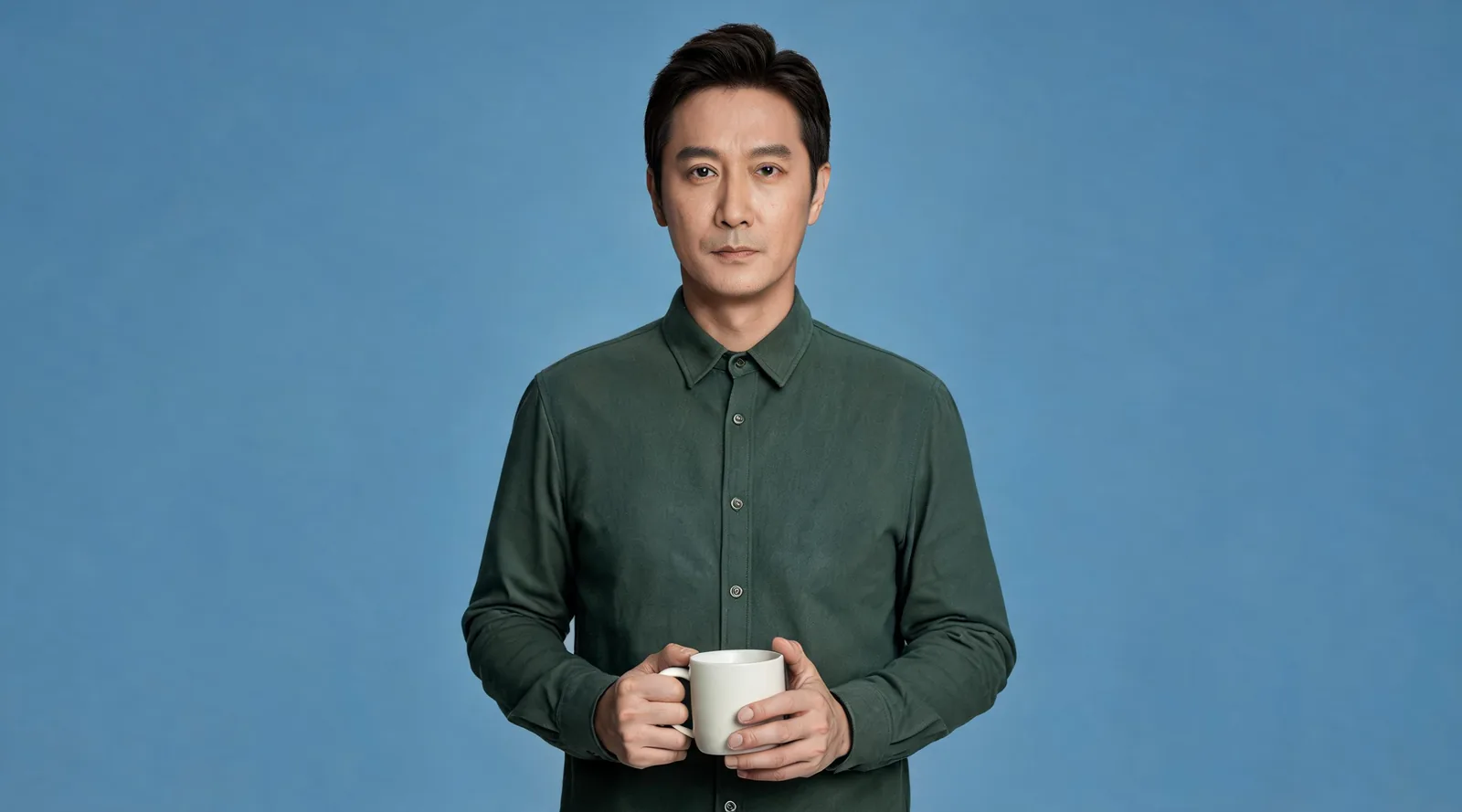 |
| Visible element | Short request result | Detailed request result |
|---|---|---|
| Background | Saturated blue | Softer, muted blue |
| Subject and pose | Centered adult in a green overshirt, holding one mug | Centered adult in a green overshirt, holding one mug |
| Added text or props | None visible | None visible |
| Framing compared with the source | Wider canvas; subject occupies less of the frame | Wider canvas; subject occupies less of the frame |
The detailed output matches the quieter backdrop requested. Both outputs widened the portrait, including the one whose prompt asked to preserve the crop. That instruction did not overcome the selected wide output ratio in this example.
There is one output per prompt. This pair illustrates the two requests; it does not establish how often either wording works or whether the preservation clause improved subject consistency. We did not compare sentences with tags or Lite with Pro.
6. What should you revise when the face, mug, or composition changes?
Revise the instruction around the visible mismatch and start again from the original source. Keep the model, quality, ratio, and format fixed while comparing wording. If the mismatch is the output shape, correct the ratio first.
The following are suggested revisions, with no additional outputs shown:
| Mismatch | Next revision to try |
|---|---|
| Background is too vivid | Specify a muted, low-saturation blue backdrop |
| Mug silhouette changes | Name the source mug's cylindrical body and single handle as details to preserve |
| Face changes | Remove unrelated styling requests and prioritize the source facial features and expression |
| Composition becomes wider | Match the source aspect ratio in the studio settings |
Save each exact prompt with its result. Returning to the original source lets you compare revisions without carrying an unwanted earlier edit into the next attempt.
FAQ
Can Seedream edit an existing image?
Yes. Seedream 5.0 Lite and Pro both offer Image → Image in this studio. Upload a source you have permission to use, describe the edit, and sign in with sufficient credits to generate.
Should I use sentences or keyword tags?
Use sentences to make the edit target and preservation instructions explicit. Both demonstrated requests use ordinary language; this example does not test whether sentences outperform tags.
How long should a Seedream edit prompt be?
Use enough words to name the change and the details that matter. Lite accepts up to 3,000 characters here, but both demonstrated prompts are far shorter. Extra words help when they resolve a specific ambiguity.
Does asking to preserve the crop keep the framing identical?
It did not in the detailed edit shown here: the vertical source became a wide image with 16:9 requested. Match the output ratio to your source when framing matters, then inspect the result.
Should I change the model when comparing prompt versions?
Keep the model, source, quality, output ratio, and format fixed to compare wording. Evaluate a model change separately; this demonstration only uses Seedream 5.0 Lite.
Next step
Open Seedance image editing, choose your source and output ratio, and describe one visible change. Add the details to preserve, then compare the result with the original before revising.
For exclusions, read the Seedream negative-prompt guide. For a change to the whole visual medium, see the Seedream style-transfer guide.