
Seedance Prompt Test Log: Compare Renders Fairly
Use a simple Seedance prompt test log to compare renders fairly, isolate one change, record review notes, and choose the next test without guessing.
A Seedance prompt test log is a short record that lets you compare renders fairly: keep the purpose and baseline steady, change one deliberate variable, review the full clip, and write down the next decision. It is not a collection of “magic prompts.” The goal is to learn whether a change in motion, camera direction, source image, or stability note made the clip more usable—without pretending that a single attractive frame proves the whole workflow worked.
Updated September 3, 2026 · about 8 min read
This is a companion to a prompt library, not a replacement
The older Seedance Prompt Library helps you choose a starter structure by video goal. This companion answers a different question after a render exists: how do you document, compare, and act on prompt tests without guessing why one result changed?
That distinction matters when credits, review time, or client approvals are limited. A library gives you a starting form. A test log turns repeated attempts into evidence for the next creative decision. It will not make a model deterministic, and it cannot establish that an output is factual, licensed, or fit for publication. It can make your own review more honest.
Use one log row per deliberate test
You do not need special software. A private project document or spreadsheet is enough if it is permitted for the project. Keep the record brief enough that you will actually complete it.
| Field | Record | Why it helps |
|---|---|---|
| Test purpose | One sentence, such as “find a stable ending for a product atmosphere shot” | Stops unrelated experiments from being compared. |
| Baseline | Prompt version and a short source description | Lets a teammate understand what stayed the same. |
| One change | The only intentional revision | Prevents false conclusions about cause. |
| Conditions | Relevant mode, duration, or output setting | Shows when renders were not comparable. |
| Review notes | Full-clip observations, including the final frame | Keeps a good opening frame from deciding the result. |
| Next decision | Keep, revert, simplify, or make a new experiment | Converts notes into a practical next step. |
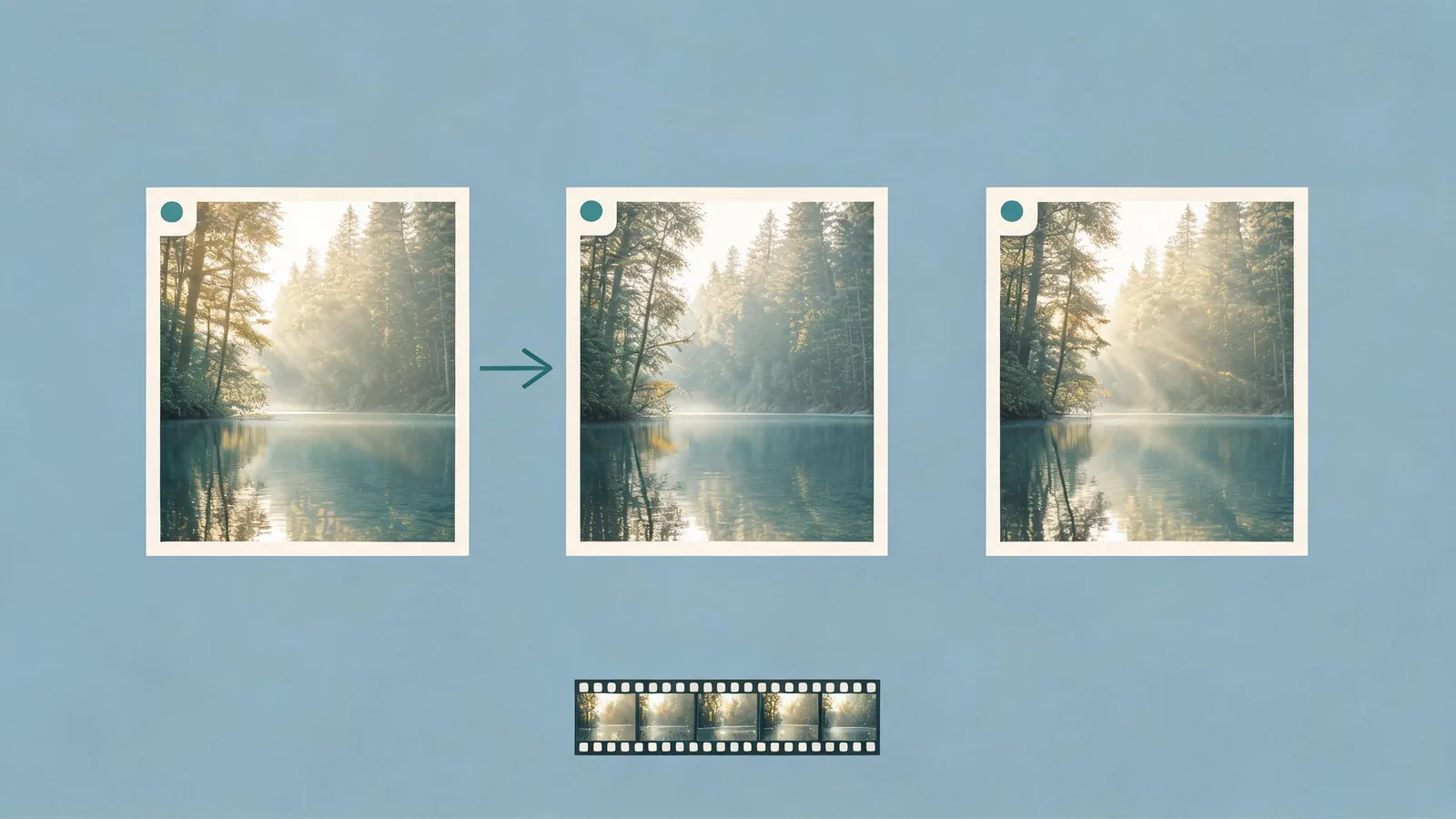
A useful test log records the decision, not just the prompt text.
The controlled comparison method
1. State a narrow purpose
“Make a great cinematic video” is not a test purpose. Use a question a reviewer can answer from a clip. For example:
- Does a slower push-in leave a usable final hold?
- Does this permitted reference retain the product silhouette during subtle motion?
- Does removing a second action make the scene easier to read?
The purpose should describe an editorial or production decision, not a promised performance result. If the desired output must show a real event, exact packaging, readable legal text, or a verified outcome, use conventional production or separately verified material instead.
2. Freeze the baseline
Copy the original prompt into the log, give it a version label, and describe the input without copying confidential material into an unapproved tool. Note the conditions that meaningfully affect a comparison: whether the test is text-to-video or image-to-video, the intended duration, and the output setting you selected.
For a fair comparison, do not quietly replace the source image, rewrite the setting, change the camera, and adjust the motion at the same time. That may make a compelling new clip, but it is a new experiment—not evidence that one wording change fixed the first version.
3. Change one visible variable
Choose a change that has a reviewable outcome. Examples include:
| Instead of | Test this | Review question |
|---|---|---|
| Two actions in one shot | One subject action | Does the subject remain easier to inspect? |
| A general camera phrase | “Slow push-in, then stable hold” | Is the ending usable for the planned edit? |
| A vague stability request | Name the specific silhouette or background geometry | Did the required visual detail remain recognizable? |
| A busy source image | A permitted, simpler source | Did the starting composition make the motion easier to judge? |
This is a creative diagnostic, not a scientific guarantee. Generated systems can vary between attempts. The value comes from making your own decision trail visible and avoiding an overconfident story about why a result changed.
Review the whole render
Watch at normal speed before you write “success.” Then inspect the opening, the first change, and the final frame. Look for unwanted objects, altered faces or hands, unstable product detail, invented readable text, abrupt camera behavior, and any implication a viewer could mistake for a real-world claim.
Use the Seedance blurry-video source-image checklist when the source itself may be undermining the result. Use the Seedance camera movement prompts guide if the camera direction is the variable you need to simplify. Those guides help you choose a next test; they do not make an unreviewed result safe to publish.
A lightweight example
Here is an intentionally simple entry for an authorized, unbranded tabletop concept:
| Field | Example entry |
|---|---|
| Purpose | Find a clean final hold for a calm product-atmosphere placeholder. |
| Baseline | V1: one approved unbranded object on a table; gentle light movement. |
| One change | V2 adds “slow push-in, then hold centered for the final moment.” |
| Conditions | Same source description and intended duration. |
| Review | Opening is clear; final hold is usable; no claim-bearing text is shown. |
| Next decision | Keep the ending instruction; test only the background stability next. |
This log does not prove that the model will repeat the result. It gives the next reviewer enough context to understand what was attempted and what to check next.
Handle creative changes honestly
Sometimes you need to change several things: a new source, a different scene, and a different intended edit. That is normal creative work. Just label it a new experiment. Do not compare it as though it were an A/B test of one phrase.
The NIST AI Risk Management Framework describes a voluntary approach to managing AI-related risk. A prompt log is not an implementation of that framework. It is a small, project-level habit that supports traceability: you can show what you changed, what you observed, and where human review made the decision.
For client work, add a column for approval status and keep the final approved version separate from exploratory tests. Do not put a client name, personal data, secrets, private image file, or an unapproved claim into a broadly shared log.
When to stop testing
Stop and change the production method when the output must preserve a critical detail that repeatedly drifts, needs exact copy, or could mislead viewers about a person, event, product, or outcome. More retries are not a substitute for verified footage, approved motion graphics, or a simpler concept.
Before delivery, use the commercial-use client video checklist and consult the current terms for the service you are using. Rights and product rules are context-specific, and this workflow guide is not legal advice.
Frequently asked questions
What should a Seedance prompt test log include?
Record the test purpose, prompt version, authorized input or source description, one deliberate change, output settings that affect comparison, full-clip review notes, and the next decision. Do not store sensitive source material unless your approved project process permits it.
How many prompt changes should I make per render?
For a diagnostic test, make one deliberate change. When several factors must change for a creative new direction, label it a new experiment rather than treating it as proof that one phrase caused the difference.
Can a good first frame count as a successful render?
No. Review the full clip, including the ending, for subject stability, unwanted detail, misleading implications, and whether the result actually supports the planned edit.