
Seedance Blurry Video? Check the Source Image First
Fix a blurry Seedance video by checking source-image sharpness, subject size, lighting, compression, crop, and one controlled test before rerendering.
If a Seedance video looks blurry, check the source image before rewriting the prompt. Start with one permitted, sharp, well-lit image where the subject is large and unobstructed; crop away clutter, avoid heavy JPEG compression, and make one short controlled test. If the test is still soft, then reduce motion and camera complexity one variable at a time.
Updated August 31, 2026 · about 7 min read
This is a source-image diagnostic, not a claim that any single setting guarantees sharp output. An image-to-video model has to interpret the pixels it receives. When the starting frame is tiny, dark, compressed, or full of competing details, the model has fewer stable cues for the subject it is meant to animate.
Separate an input problem from a motion problem
There are two different questions behind a blurry AI video:
| Question | First place to look | First adjustment |
|---|---|---|
| Was the subject already unclear before generation? | Source image | Choose a cleaner original, crop, or reshoot |
| Did the subject become soft during action? | Prompt and motion | Reduce simultaneous movement or camera changes |
| Is only the final file soft? | Export and playback | Check the actual downloaded file and current export options |
The older motion-blur prompt guide focuses on the second question: what you ask to move. This companion page has a different purpose: deciding whether the image is suitable before you spend another render on it.
Run this five-point source-image check
1. Make the subject large enough to inspect
Open the original at normal viewing size. Can you identify the face, product edge, garment, pet, or key object without zooming far in? If the subject occupies a small corner of a wide photo, crop it before you generate. Leave enough surrounding space for the intended movement, but do not make the central subject an afterthought.
For a product, inspect the silhouette and the important material edges. For a portrait, inspect the eyes, face outline, hairline, and any hand that crosses the face. For a location, inspect horizon lines, door frames, and other geometry that viewers will notice if it bends.
2. Check light and contrast, not just resolution
A large file can still be hard to interpret when the subject blends into a dark background or bright window. Look for a clear separation between the subject and its surroundings. Avoid treating a dramatic low-light reference as a technical guarantee: it may suit a mood board but still make a poor first image-to-video test.
Make a neutral, well-lit test before you ask for rain, smoke, fast movement, or colored light. Once the simple test holds together, add the atmosphere deliberately.
3. Reject heavy compression and accidental blur
Screenshots of screenshots, social-media downloads, and repeatedly saved JPEG files can hide block artifacts and soft edges that look minor in a small preview. A model may turn those uncertain edges into unstable motion.
Use the original file when you have it. If you do not, choose the cleanest permitted version and do not rely on aggressive sharpening to reconstruct missing detail. Enhancement can invent texture, lettering, or facial features; that is especially risky for client work, product claims, and recognizable people.
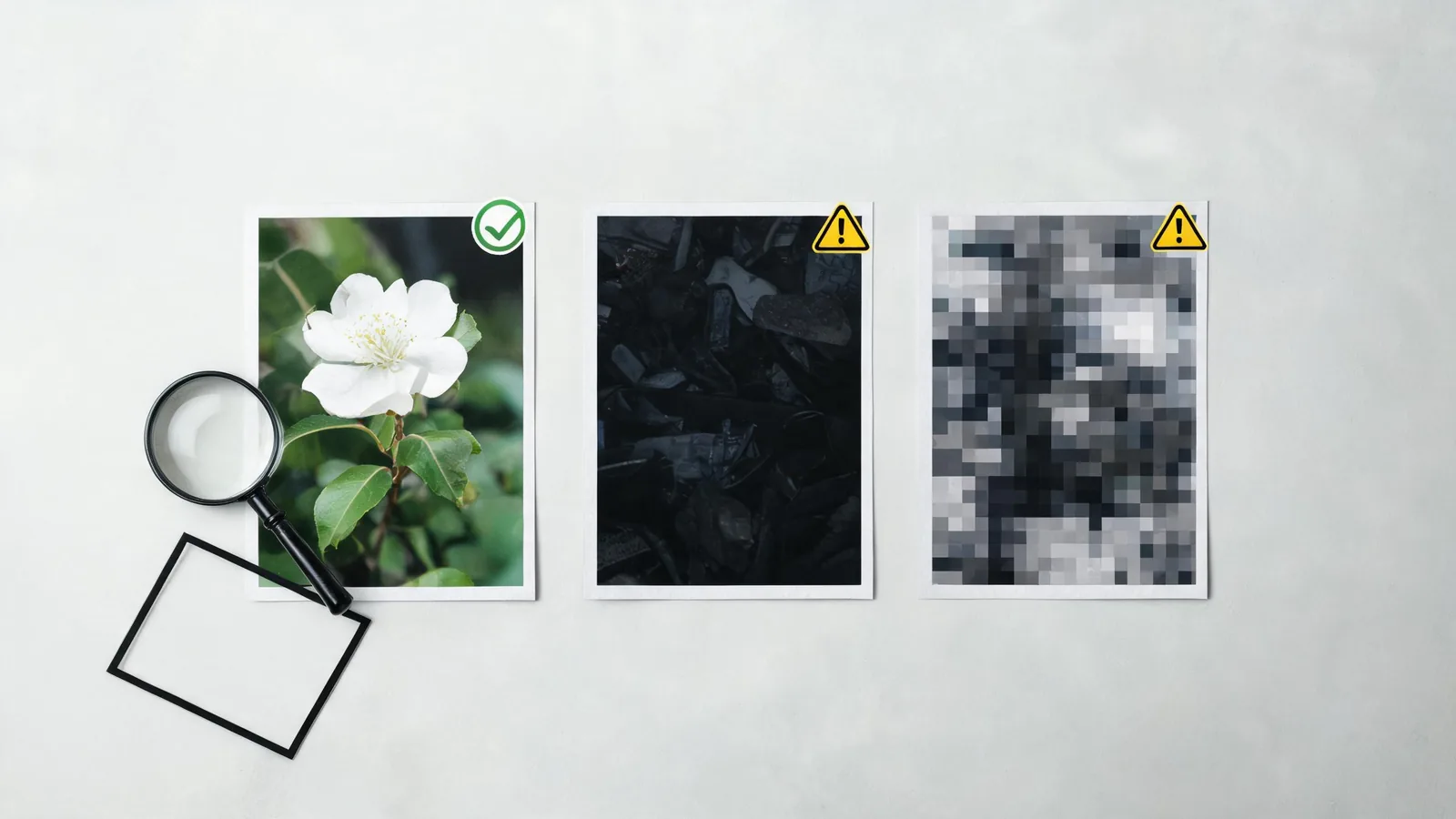
Use this as an editorial triage concept, not as a measurement tool or a claim about a particular model output.
4. Remove details the shot does not need
An image can be technically sharp and still be a poor motion source because it asks the model to preserve too much. Crop out unreadable labels, dense crowds, reflections, extra people, and background objects that are not part of the shot. Keep the intended subject, its important edges, and a little room for motion.
This is also a privacy decision. Remove private screens, address clues, license plates, and unrelated people before upload. The Seedance image-upload privacy checklist covers the permission and sensitive-information review that should happen alongside visual cleanup.
5. Match the image to one modest motion request
After the image check, make the first prompt deliberately plain:
Use the uploaded image as the opening frame. Keep the main subject, background geometry, lighting direction, and important edges stable. Add one slow visible motion and one gentle camera behavior. End on a clear still frame. No text, extra objects, fast movement, or scene change.
This test tells you whether the source holds up before you combine it with an orbit, a crowd, a night scene, or a long action sequence. For a full setup walkthrough, use the Seedance image-to-video guide.
Do not confuse clarity with authenticity
A sharp source image does not give permission to animate it, and a clean output does not prove an event happened. Use only images you created, own, or are allowed to use for this exact motion and distribution. Keep generated concepts distinct from verified product demonstrations, news footage, or a real person's actions.
The U.S. Copyright Office's AI initiative tracks policy work around AI and copyright. It is useful context, not legal advice or a substitute for checking the rights in a source image and the current terms of the service you use.
A fast rerender decision tree
Use this order so each new attempt answers one question:
- Source is soft or tiny: replace it with a cleaner original or crop around the subject.
- Source is clear, first test is soft: reduce action to one motion and use a steady camera.
- Subject is clear but background wobbles: remove busy background detail or make the camera still.
- Only the downloaded file is soft: inspect the actual export, your playback quality, and the current available output choices before you regenerate.
- The result changes a person, product, or claim: do not publish the near miss; simplify the source and review again.
Keep a small note with the source version, crop, prompt, and outcome. It prevents repeated changes from obscuring the cause of a better or worse result.
Frequently asked questions
Can a blurry source image make a Seedance video blurry?
It can. A soft, small, dark, or heavily compressed source gives the video workflow less reliable detail to preserve, so start with the clearest permitted image you have.
Should I sharpen or upscale an image before image-to-video?
Use only careful edits that improve clarity without inventing product details, facial features, text, or evidence. A clean crop and better original image are usually safer than aggressive enhancement.
Why is my Seedance video soft even with a sharp image?
The prompt may still ask for too much simultaneous movement, a difficult camera move, or a low-light scene. Test one small change at a time after the source-image check.
Make the smallest useful test
The best next render is not necessarily the longest or most cinematic one. Start with a trustworthy source, one requested motion, and a clear ending. Once that version stays readable, you have a sensible baseline for creative changes.