
Is Seedance 2.5 Free? Current Access and Pricing
Is Seedance 2.5 free? Learn the current credit-based access model, pricing options, failed-render refunds, watermarks, and export settings before you generate.
Seedance 2.5 AI is a credit-based video studio. New accounts do not receive free starter credits. You can choose a one-time credit pack when you do not want a subscription, or select a membership plan for recurring work.
This guide explains what to check before you generate: paid plans, one-time credit packs, failed renders, watermarks, clip length, and when it makes sense to upgrade.
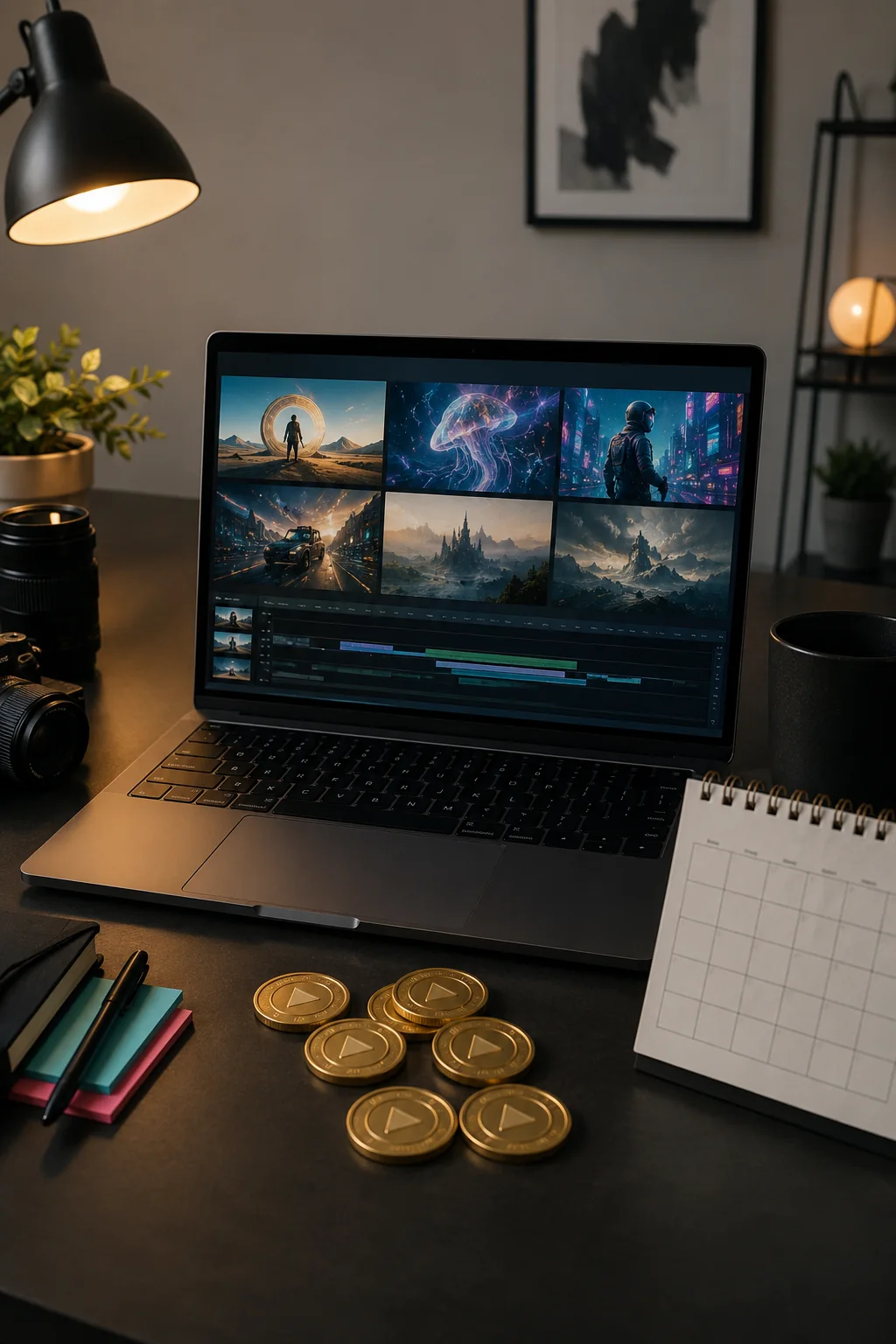
Concept visual: plan credits around useful renders and clear production goals.
Quick Answer: Credit-Based Access
Seedance 2.5 does not currently offer free starter credits. The Seedance 2.5 pricing page lists subscription tiers and one-time credit packs, so users can choose between monthly capacity and pay-as-needed credits.
The practical rule is simple: plan for the credits needed for the renders you want to make. AI video generation has real compute cost, so duration, output settings, retries, and the number of clips you keep all affect your budget.
How to Plan Your First Credits
Use a small credit pack to learn how source images, prompt detail, camera movement, and output settings affect the result. Do not spend credits on vague prompts like "make a cool video." A specific first test teaches you more.
A useful first test has one clear subject, one motion idea, and one quality goal. For example, upload a product photo and ask for a slow camera push-in with subtle lighting movement. Or start from a portrait and ask for gentle natural movement, not a dramatic scene change.
What Paid Credits and Plans Cover
Paid credits cover generation. If you are testing ads, creator clips, product videos, or several prompt variations, a subscription plan provides a monthly credit pool. One-time packs are better when you only need a few renders without a recurring plan.
The pricing page currently presents Mini, Standard, and Plus plans, plus credit packs. It also states that failed renders are refunded and downloads are watermark-free on supported exports. Check the live pricing page before you make a purchase because credit amounts and prices can change.
Plan Credits Around Useful Outputs
The important question is not how many renders you can start. It is how many useful clips you can finish. A creator may need several attempts to get the right motion, framing, and pacing. A product team may need variations for different aspect ratios or hooks. A marketer may need a few rejected versions before finding a clip that fits the ad.
Before buying credits, estimate the number of final clips you need and multiply by a small testing buffer. If you need one finished clip, plan for several attempts. If you need a weekly content pipeline, a recurring plan may be easier than buying small packs repeatedly.
Before You Spend Credits, Check These Settings
| Check | Why it matters |
|---|---|
| Mode | Choose text-to-video or image-to-video before writing the prompt. |
| Prompt clarity | Specific subject, motion, camera, and lighting reduce wasted attempts. |
| Duration | Longer clips usually need more planning and may consume more credits. |
| Output quality | Higher settings can be useful for final clips, but test cheaply first. |
| Retry plan | Keep notes so each retry improves one variable, not five at once. |

Concept visual: use a controlled first test to build a repeatable workflow before scaling up.
How to Get More Value From Your First Renders
Start with a source image that already has strong composition. If the image is blurry, too dark, or cluttered, the video result may fail for reasons unrelated to the model. For image-to-video, a clear reference image gives the model a better starting frame. For text-to-video, a clean scene description matters more.
Use the Seedance 2.5 image to video flow when you care about preserving a subject, product, or look. Use Seedance 2.5 video generator workflows when you want to create from a written scene. If you need prompt structure, the Seedance 2.5 prompt guide is a safer first read than experimenting blindly.
When a Paid Plan Makes Sense
A paid plan makes sense when you render often, work on batches, or need predictable monthly capacity. A credit pack makes sense when you have a one-off project. If you are testing one idea, start small. If you are building a weekly creator pipeline, a plan may be easier to budget.
For teams, the real cost is not only credits. It is also the time spent planning, reviewing, and rerendering. A good prompt note system can save credits because you learn from each attempt. Write down what changed between renders: image, subject, motion, camera, duration, and output setting.
What to Avoid on Early Renders
Do not spend credits on a complicated scene with multiple subjects, fast camera movement, and unclear lighting. That kind of prompt is hard to diagnose. Start with one subject and one motion. If the result works, add complexity. If it fails, you will know which part of the workflow needs adjustment.
Also avoid comparing results across totally different prompts. An early test is more useful when it teaches you one repeatable formula. Try a product clip, a portrait animation, or a simple text-to-video scene. Then improve that same direction rather than jumping between unrelated ideas.
Bottom Line
Seedance 2.5 is credit-based. Check the live pricing page, start with a clear prompt or reference image, and use early renders to learn the workflow. The cheapest clip is not always the first one. It is the one that gets you to a usable result with the fewest wasted attempts.